
@capgo/native-audio
Capacitor plugin for playing sounds.






Capacitor plugin for native audio engine. Capacitor V7 - ✅ Support!
Support local file, remote URL, and m3u8 stream
Click on video to see example 💥
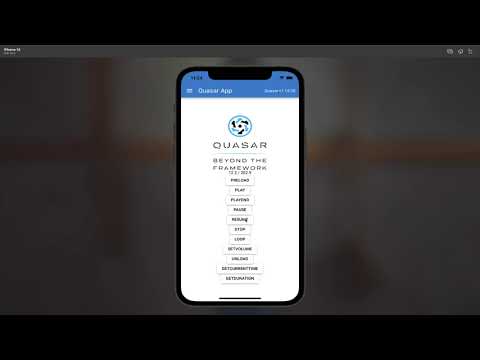
The only free, full-featured audio playback plugin for Capacitor:
- HLS/M3U8 streaming - Play live audio streams and adaptive bitrate content
- Remote URLs - Stream from HTTP/HTTPS sources with built-in caching
- Low-latency playback - Optimized native audio engine for sound effects and music
- Full control - Play, pause, resume, loop, seek, volume, playback rate
- Multiple channels - Play multiple audio files simultaneously
- Background playback - Continue playing when app is backgrounded
- Notification center display - Show audio metadata in iOS Control Center and Android notifications
- Position tracking - Real-time currentTime events (100ms intervals)
- Modern package management - Supports both Swift Package Manager (SPM) and CocoaPods (SPM-ready for Capacitor 8)
- Same JavaScript API - Compatible interface with paid alternatives
- Support player notification center - Play, pause, show cover for your user when long playing audio.
Perfect for music players, podcast apps, games, meditation apps, and any audio-heavy application.
| Maintainer | GitHub | Social |
|---|---|---|
| Martin Donadieu | riderx | Telegram |
Mainteinance Status: Actively Maintained
All audio files must be with the rest of your source files.
First make your sound file end up in your built code folder, example in folder BUILDFOLDER/assets/sounds/FILENAME.mp3
Then use it in preload like that assets/sounds/FILENAME.mp3
The most complete doc is available here: https://capgo.app/docs/plugins/native-audio/
To use npm
npm install @capgo/native-audioTo use yarn
yarn add @capgo/native-audioSync native files
npx cap syncOn iOS, Android and Web, no further steps are needed.
You can also consume the iOS implementation via Swift Package Manager. In Xcode open File → Add Package…, point it at https://github.com/Cap-go/capacitor-native-audio.git, and select the CapgoNativeAudio library product. The package supports iOS 14 and newer alongside Capacitor 7.
By default, HLS streaming support is enabled for backward compatibility. However, it adds approximately 4MB to your Android APK size due to the media3-exoplayer-hls dependency.
If you don't need HLS/m3u8 streaming support, you can disable it to reduce your APK size:
// capacitor.config.ts
import type { CapacitorConfig } from '@capacitor/cli';

const config: CapacitorConfig = {
  appId: 'com.example.app',
  appName: 'My App',
  plugins: {
    NativeAudio: {
      hls: false  // Disable HLS to reduce APK size by ~4MB
    }
  }
};

export default config;
After changing the configuration, run:
npx cap syncNotes:
- iOS uses native AVPlayer for HLS, so this setting only affects Android
- If HLS is disabled and you try to play an
.m3u8file, you'll get a clear error message explaining how to enable it - The default is
hls: trueto maintain backward compatibility
| Name | Android | iOS | Web |
|---|---|---|---|
| configure | ✅ | ✅ | ❌ |
| preload | ✅ | ✅ | ✅ |
| play | ✅ | ✅ | ✅ |
| pause | ✅ | ✅ | ✅ |
| resume | ✅ | ✅ | ✅ |
| loop | ✅ | ✅ | ✅ |
| stop | ✅ | ✅ | ✅ |
| unload | ✅ | ✅ | ✅ |
| setVolume | ✅ | ✅ | ✅ |
| getDuration | ✅ | ✅ | ✅ |
| getCurrentTime | ✅ | ✅ | ✅ |
| isPlaying | ✅ | ✅ | ✅ |
You can display audio playback information in the system notification center. This is perfect for music players, podcast apps, and any app that plays audio in the background.
⚠️ Important iOS BehaviorEnabling
showNotification: truechanges how your app's audio interacts with other apps on iOS:
- With notifications enabled (showNotification: true): Your audio will interrupt other apps' audio (like Spotify, Apple Music, etc.). This is required for Now Playing controls to appear in Control Center and on the lock screen.
- With notifications disabled (showNotification: false): Your audio will mix with other apps' audio, allowing background music to continue playing.
When to use each:
- ✅ Use
showNotification: truefor: Music players, podcast apps, audiobook players (primary audio source)- ❌ Use
showNotification: falsefor: Sound effects, notification sounds, secondary audio where mixing is preferredSee Issue #202 for technical details.
Step 1: Configure the plugin with notification support
import { NativeAudio } from '@capgo/native-audio'

// Enable notification center display
await NativeAudio.configure({
  showNotification: true,
  background: true  // Also enable background playback
});
Step 2: Preload audio with metadata
await NativeAudio.preload({
  assetId: 'song1',
  assetPath: 'https://example.com/song.mp3',
  isUrl: true,
  notificationMetadata: {
    title: 'My Song Title',
    artist: 'Artist Name',
    album: 'Album Name',
    artworkUrl: 'https://example.com/artwork.jpg'  // Can be local or remote URL
  }
});
Step 3: Play the audio
// When you play the audio, it will automatically appear in the notification center
await NativeAudio.play({ assetId: 'song1' });
The notification will:
- Show the title, artist, and album information
- Display the artwork/album art (if provided)
- Include media controls (play/pause/stop buttons)
- Automatically update when audio is paused/resumed
- Automatically clear when audio is stopped
- Work on both iOS and Android
Media Controls: Users can control playback directly from:
- iOS: Control Center, Lock Screen, CarPlay
- Android: Notification tray, Lock Screen, Android Auto
The media control buttons automatically handle:
- Play - Resumes paused audio
- Pause - Pauses playing audio
- Stop - Stops audio and clears the notification
Notes:
- All metadata fields are optional
- Artwork can be a local file path or remote URL
- The notification only appears when
showNotification: trueis set in configure() ⚠️ iOS: Enabling notifications will interrupt other apps' audio (see warning above)- iOS: Uses MPNowPlayingInfoCenter with MPRemoteCommandCenter
- Android: Uses MediaSession with NotificationCompat.MediaStyle
For simple one-shot audio playback (sound effects, notifications, etc.), use playOnce() which handles the entire asset lifecycle automatically:
// Basic usage - automatic cleanup after playback
await NativeAudio.playOnce({
  assetPath: 'audio/notification.mp3',
});

// With volume control
await NativeAudio.playOnce({
  assetPath: 'audio/beep.wav',
  volume: 0.8,
});

// Remote audio with notification metadata
await NativeAudio.playOnce({
  assetPath: 'https://example.com/audio.mp3',
  isUrl: true,
  autoPlay: true,
  notificationMetadata: {
    title: 'Song Name',
    artist: 'Artist Name',
  }
});

// Temporary file with automatic deletion
await NativeAudio.playOnce({
  assetPath: 'file:///path/to/temp-audio.wav',
  deleteAfterPlay: true, // File deleted after playback completes
  volume: 0.5,
});If you need to control playback timing, set autoPlay: false and use the returned assetId:
const { assetId } = await NativeAudio.playOnce({
  assetPath: 'audio/sound.wav',
  autoPlay: false,
});

// Play later when needed
await NativeAudio.play({ assetId });

// Stop if needed (will auto-cleanup)
await NativeAudio.stop({ assetId });
Key Features:
- ✅ Automatic asset loading and unloading
- ✅ Cleanup on completion or error
- ✅ Optional file deletion after playback
- ✅ Notification metadata support
- ✅ Works with local files and remote URLs
Notes:
- Assets are automatically cleaned up after playback completes or on error
deleteAfterPlayonly works for localfile://URLs, not remote URLs- The returned
assetIdcan be used withplay(),stop(),unload()methods - Manual cleanup via
stop()orunload()is optional but supported
This repository now ships with an interactive Capacitor project under example/ that exercises the main APIs on web, iOS, and Android shells.
cd example
npm install
npm run dev      # start the web playground
npm run sync     # optional: generate iOS/Android platforms
npm run ios      # open the iOS shell app
npm run android  # open the Android shell app
The UI demonstrates local asset preloading, remote streaming, playback controls, looping, live position updates, and cache clearing for remote audio.
import {NativeAudio} from '@capgo/native-audio'


/**
 * This method will load more optimized audio files for background into memory.
 * @param assetPath - relative path of the file, absolute url (file://) or remote url (https://)
 *        assetId - unique identifier of the file
 *        audioChannelNum - number of audio channels
 *        isUrl - pass true if assetPath is a `file://` url
 * @returns void
 */
NativeAudio.preload({
    assetId: "fire",
    assetPath: "assets/sounds/fire.mp3",
    audioChannelNum: 1,
    isUrl: false
});

/**
 * This method will play the loaded audio file if present in the memory.
 * @param assetId - identifier of the asset
 * @param time - (optional) play with seek. example: 6.0 - start playing track from 6 sec
 * @returns void
 */
NativeAudio.play({
    assetId: 'fire',
    // time: 6.0 - seek time
});

/**
 * This method will loop the audio file for playback.
 * @param assetId - identifier of the asset
 * @returns void
 */
NativeAudio.loop({
  assetId: 'fire',
});


/**
 * This method will stop the audio file if it's currently playing.
 * @param assetId - identifier of the asset
 * @returns void
 */
NativeAudio.stop({
  assetId: 'fire',
});

/**
 * This method will unload the audio file from the memory.
 * @param assetId - identifier of the asset
 * @returns void
 */
NativeAudio.unload({
  assetId: 'fire',
});

/**
 * This method will set the new volume for a audio file.
 * @param assetId - identifier of the asset
 *        volume - numerical value of the volume between 0.1 - 1.0 default 1.0
 * @returns void
 */
NativeAudio.setVolume({
  assetId: 'fire',
  volume: 0.4,
});

/**
 * this method will get the duration of an audio file.
 * only works if channels == 1
 */
NativeAudio.getDuration({
  assetId: 'fire'
})
.then(result => {
  console.log(result.duration);
})

/**
 * this method will get the current time of a playing audio file.
 * only works if channels == 1
 */
NativeAudio.getCurrentTime({
  assetId: 'fire'
});
.then(result => {
  console.log(result.currentTime);
})

/**
 * This method will return false if audio is paused or not loaded.
 * @param assetId - identifier of the asset
 * @returns {isPlaying: boolean}
 */
NativeAudio.isPlaying({
  assetId: 'fire'
})
.then(result => {
  console.log(result.isPlaying);
})configure(options: ConfigureOptions) => Promise<void>Configure the audio player
| Param | Type |
|---|---|
options |
ConfigureOptions |
Since: 5.0.0
preload(options: PreloadOptions) => Promise<void>Load an audio file
| Param | Type |
|---|---|
options |
PreloadOptions |
Since: 5.0.0
playOnce(options: PlayOnceOptions) => Promise<PlayOnceResult>Play an audio file once with automatic cleanup
Method designed for simple, single-shot audio playback, such as notification sounds, UI feedback, or other short audio clips that don't require manual state management.
Key Features:
- Fire-and-forget: No need to manually preload, play, stop, or unload
- Auto-cleanup: Asset is automatically unloaded after playback completes
- Optional file deletion: Can delete local files after playback (useful for temp files)
- Returns assetId: Can still control playback if needed (pause, stop, etc.)
Use Cases:
- Notification sounds
- UI sound effects (button clicks, alerts)
- Short audio clips that play once
- Temporary audio files that should be cleaned up
Comparison with regular play():
play(): Requires manual preload, play, and unload stepsplayOnce(): Handles everything automatically with a single call
| Param | Type |
|---|---|
options |
PlayOnceOptions |
Returns: Promise<PlayOnceResult>
Since: 7.11.0
isPreloaded(options: PreloadOptions) => Promise<{ found: boolean; }>Check if an audio file is preloaded
| Param | Type |
|---|---|
options |
PreloadOptions |
Returns: Promise<{ found: boolean; }>
Since: 6.1.0
play(options: { assetId: string; time?: number; delay?: number; }) => Promise<void>Play an audio file
| Param | Type |
|---|---|
options |
{ assetId: string; time?: number; delay?: number; } |
Since: 5.0.0
pause(options: Assets) => Promise<void>Pause an audio file
| Param | Type |
|---|---|
options |
Assets |
Since: 5.0.0
resume(options: Assets) => Promise<void>Resume an audio file
| Param | Type |
|---|---|
options |
Assets |
Since: 5.0.0
loop(options: Assets) => Promise<void>Stop an audio file
| Param | Type |
|---|---|
options |
Assets |
Since: 5.0.0
stop(options: Assets) => Promise<void>Stop an audio file
| Param | Type |
|---|---|
options |
Assets |
Since: 5.0.0
unload(options: Assets) => Promise<void>Unload an audio file
| Param | Type |
|---|---|
options |
Assets |
Since: 5.0.0
setVolume(options: { assetId: string; volume: number; }) => Promise<void>Set the volume of an audio file
| Param | Type |
|---|---|
options |
{ assetId: string; volume: number; } |
Since: 5.0.0
setRate(options: { assetId: string; rate: number; }) => Promise<void>Set the rate of an audio file
| Param | Type |
|---|---|
options |
{ assetId: string; rate: number; } |
Since: 5.0.0
setCurrentTime(options: { assetId: string; time: number; }) => Promise<void>Set the current time of an audio file
| Param | Type |
|---|---|
options |
{ assetId: string; time: number; } |
Since: 6.5.0
getCurrentTime(options: { assetId: string; }) => Promise<{ currentTime: number; }>Get the current time of an audio file
| Param | Type |
|---|---|
options |
{ assetId: string; } |
Returns: Promise<{ currentTime: number; }>
Since: 5.0.0
getDuration(options: Assets) => Promise<{ duration: number; }>Get the duration of an audio file
| Param | Type |
|---|---|
options |
Assets |
Returns: Promise<{ duration: number; }>
Since: 5.0.0
isPlaying(options: Assets) => Promise<{ isPlaying: boolean; }>Check if an audio file is playing
| Param | Type |
|---|---|
options |
Assets |
Returns: Promise<{ isPlaying: boolean; }>
Since: 5.0.0
addListener(eventName: 'complete', listenerFunc: CompletedListener) => Promise<PluginListenerHandle>Listen for complete event
| Param | Type |
|---|---|
eventName |
'complete' |
listenerFunc |
CompletedListener |
Returns: Promise<PluginListenerHandle>
Since: 5.0.0 return {@link CompletedEvent}
addListener(eventName: 'currentTime', listenerFunc: CurrentTimeListener) => Promise<PluginListenerHandle>Listen for current time updates Emits every 100ms while audio is playing
| Param | Type |
|---|---|
eventName |
'currentTime' |
listenerFunc |
CurrentTimeListener |
Returns: Promise<PluginListenerHandle>
Since: 6.5.0 return {@link CurrentTimeEvent}
clearCache() => Promise<void>Clear the audio cache for remote audio files
Since: 6.5.0
getPluginVersion() => Promise<{ version: string; }>Get the native Capacitor plugin version
Returns: Promise<{ version: string; }>
deinitPlugin() => Promise<void>Deinitialize the plugin and restore original audio session settings This method stops all playing audio and reverts any audio session changes made by the plugin Use this when you need to ensure compatibility with other audio plugins
Since: 7.7.0
| Prop | Type | Description |
|---|---|---|
fade |
boolean |
Play the audio with Fade effect, only available for IOS |
focus |
boolean |
focus the audio with Audio Focus |
background |
boolean |
Play the audio in the background |
ignoreSilent |
boolean |
Ignore silent mode, works only on iOS setting this will nuke other audio apps |
showNotification |
boolean |
Show audio playback in the notification center (iOS and Android) When enabled, displays audio metadata (title, artist, album, artwork) in the system notification and Control Center (iOS) or lock screen. Important iOS Behavior: Enabling this option changes the audio session category to .playback with .default mode, which means your app's audio will interrupt other apps' audio (like background music from Spotify, Apple Music, etc.) instead of mixing with it. This is required for the Now Playing info to appear in Control Center and on the lock screen. Trade-offs: - showNotification: true → Shows Now Playing controls, but interrupts other audio - showNotification: false → Audio mixes with other apps, but no Now Playing controls Use this when your app is the primary audio source (music players, podcast apps, etc.). Disable this for secondary audio like sound effects or notification sounds where mixing with background music is preferred. |
| Prop | Type | Description | Since |
|---|---|---|---|
assetPath |
string |
Path to the audio file, relative path of the file, absolute url (file://) or remote url (https://) Supported formats: - MP3, WAV (all platforms) - M3U8/HLS streams (iOS and Android) | |
assetId |
string |
Asset Id, unique identifier of the file | |
volume |
number |
Volume of the audio, between 0.1 and 1.0 | |
audioChannelNum |
number |
Audio channel number, default is 1 | |
isUrl |
boolean |
Is the audio file a URL, pass true if assetPath is a file:// url or a streaming URL (m3u8) |
|
notificationMetadata |
NotificationMetadata |
Metadata to display in the notification center when audio is playing. Only used when showNotification: true is set in configure(). See {@link ConfigureOptions.showNotification} for important details about how this affects audio mixing behavior on iOS. |
|
headers |
Record<string, string> |
Custom HTTP headers to include when fetching remote audio files. Only used when isUrl is true and assetPath is a remote URL (http/https). Example: { 'x-api-key': 'abc123', 'Authorization': 'Bearer token' } | 7.10.0 |
Metadata to display in the notification center, Control Center (iOS), and lock screen
when showNotification is enabled in configure().
Note: This metadata will only be displayed if showNotification: true is set in the
configure() method. See {@link ConfigureOptions.showNotification} for important
behavior details about audio mixing on iOS.
| Prop | Type | Description |
|---|---|---|
title |
string |
The title to display in the notification center |
artist |
string |
The artist name to display in the notification center |
album |
string |
The album name to display in the notification center |
artworkUrl |
string |
URL or local path to the artwork/album art image |
| Prop | Type | Description |
|---|---|---|
assetId |
string |
The internally generated asset ID for this playback Can be used to control playback (pause, stop, etc.) before completion |
| Prop | Type | Description | Default | Since |
|---|---|---|---|---|
assetPath |
string |
Path to the audio file, relative path of the file, absolute url (file://) or remote url (https://) Supported formats: - MP3, WAV (all platforms) - M3U8/HLS streams (iOS and Android) | ||
volume |
number |
Volume of the audio, between 0.1 and 1.0 | 1.0 |
|
isUrl |
boolean |
Is the audio file a URL, pass true if assetPath is a file:// url or a streaming URL (m3u8) |
false |
|
autoPlay |
boolean |
Automatically start playback after loading | true |
|
deleteAfterPlay |
boolean |
Delete the audio file from disk after playback completes Only works for local files (file:// URLs), ignored for remote URLs | false |
7.11.0 |
notificationMetadata |
NotificationMetadata |
Metadata to display in the notification center when audio is playing. Only used when showNotification: true is set in configure(). See {@link ConfigureOptions.showNotification} for important details about how this affects audio mixing behavior on iOS. |
7.10.0 | |
headers |
Record<string, string> |
Custom HTTP headers to include when fetching remote audio files. Only used when isUrl is true and assetPath is a remote URL (http/https). Example: { 'x-api-key': 'abc123', 'Authorization': 'Bearer token' } | 7.10.0 |
| Prop | Type | Description |
|---|---|---|
assetId |
string |
Asset Id, unique identifier of the file |
| Prop | Type |
|---|---|
remove |
() => Promise<void> |
| Prop | Type | Description | Since |
|---|---|---|---|
assetId |
string |
Emit when a play completes | 5.0.0 |
| Prop | Type | Description | Since |
|---|---|---|---|
currentTime |
number |
Current time of the audio in seconds | 6.5.0 |
assetId |
string |
Asset Id of the audio | 6.5.0 |
Construct a type with a set of properties K of type T
{
[P in K]: T;
}
(state: CompletedEvent): void
(state: CurrentTimeEvent): void
npm run buildThis plugin includes a comprehensive test suite for iOS:
- Open the iOS project in Xcode:
npx cap open ios - Navigate to the
PluginTestsdirectory - Run tests using Product > Test (⌘+U)
The tests cover core functionality including audio asset initialization, playback, volume control, fade effects, and more. See the test documentation for more details.