
This project tries to help alter the modern internet to work on really old computers and systems, with a focus on cleaning the rough edges and bringing in multiple sources of archival internet data. Browse the web like you are back in 1999, or have access to modern encrypted websites from Windows 95 (just don't login to your bank with this!)
- Download the latest
VintageHive-v*-win-x64.zipfrom the Releases page - Right-click the ZIP file and select "Extract All..."
- Choose a destination folder (e.g.,
C:\VintageHive) - Open the extracted folder
- Run
VintageHive.exe - When prompted by Windows Defender Firewall, click "Allow Access"
- The server will start and be accessible at:
- HTTP Proxy:
http://127.0.0.1:1990 - Admin Interface:
http://admin.hive.com:1990
- HTTP Proxy:
- Download the latest
VintageHive-v*-linux-x64.tar.gzfrom the Releases page - Open a terminal and navigate to your download directory
- Extract the archive:
tar xzf VintageHive-v*-linux-x64.tar.gz
cd VintageHive-v*-linux-x64
- Make the binary executable:
chmod +x VintageHive
- Run VintageHive:
./VintageHive
- The server will start and be accessible at:
- HTTP Proxy:
http://127.0.0.1:1990 - Admin Interface:
http://admin.hive.com:1990
- HTTP Proxy:
Note: On Linux, you might need to run with sudo if you want to use privileged ports (< 1024)
- Download the latest
VintageHive-v*-osx-x64.tar.gzfrom the Releases page - Open Terminal and navigate to your download directory
- Extract the archive:
tar xzf VintageHive-v*-osx-x64.tar.gz
cd VintageHive-v*-osx-x64
- Make the binary executable:
chmod +x VintageHive
- The first time you run VintageHive, macOS may block it. To allow it:
- Try to run
./VintageHive - When blocked, go to System Preferences > Security & Privacy
- Click "Allow Anyway" for VintageHive
- Run
./VintageHiveagain and click "Open" when prompted
- Try to run
- The server will start and be accessible at:
- HTTP Proxy:
http://127.0.0.1:1990 - Admin Interface:
http://admin.hive.com:1990
- HTTP Proxy:
On first run, VintageHive will:
- Create necessary directories for data storage
- Generate SSL certificates for HTTPS proxy
- Initialize the local database
- Start all enabled services
Visit http://admin.hive.com:1990 to:
- Monitor proxy activity
- Configure services
- Manage certificates
- View system status
| Service | Port | Documentation |
|---|---|---|
| HTTP | 1990 | Docs |
| HTTPS | 9999 | Docs |
| FTP | 1971 | Docs |
| TELNET | 1969 | Docs |
- Main Url:
http://hive.com - 🧪 Shoutcast:
http://radio.hive.com/
When using this proxy, it will parse any http request through several processors, in decending order
- HelperProcessor.ProcessHttpRequest
- LocalServerProcessor.ProcessHttpRequest
- ProtoWebProcessor.ProcessHttpRequest
- InternetArchiveProcessor.ProcessHttpRequest
- 404
When using this proxy, it will parse any https request, create a certificate authority and generate certificates for processing through several processors, in decending order
When using this proxy, it will parse any ftp request through several processors, in decending order
This is a pure C# implementation of a Telnet server intended to allow really old machines like 386's and 80's Macs to access the same data they could using the HTTP proxy and Lynx (text only browser) or something similar. For cases where this is not possible this Telnet server seeks to provide an alternative way to view modern data through old software since Telnet clients were very popular and avaliable on every platform. Once connected type help to get a list of commands.

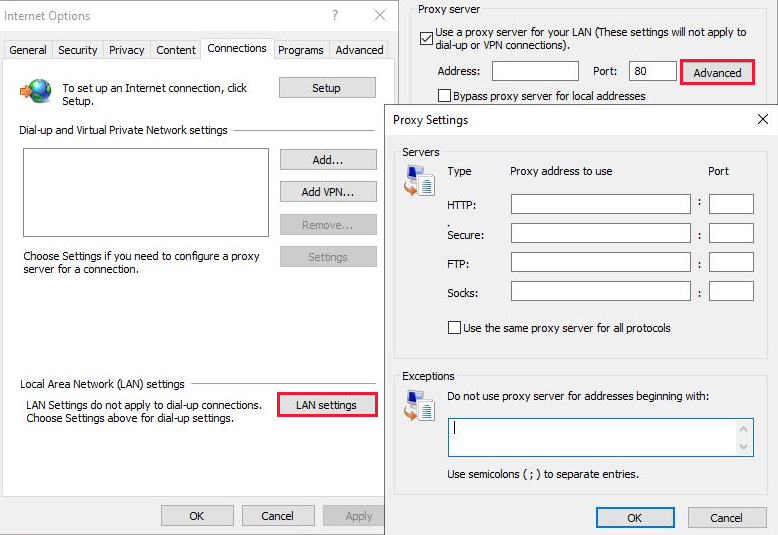
- Open the Tools menu, and then select Internet Options
- Click on the Connections tab
- Select LAN Settings
- In the Local Area Network Settings dialog box, select the
Use a proxy server for your LANsettings check box - Input your host IP address and the port
1990in the HTTP proxy field

- Open
Edit > Preferences - Navigate to
Advanced > Proxies - Select
Manual Proxy Configuration - Set:
- HTTP Proxy:
127.0.0.1Port:1990 - Security Proxy (SSL):
127.0.0.1Port:9999 - FTP Proxy:
127.0.0.1Port:1971
- HTTP Proxy:
- Click
OK

- Open
View > Options(orTools > Internet Optionsin IE5) - Click
Connectiontab - Click
Proxy SettingsorLAN Settings - Check
Use a proxy server - Click
Advanced - Set:
- HTTP:
127.0.0.1:1990 - Secure (HTTPS):
127.0.0.1:9999 - FTP:
127.0.0.1:1971
- HTTP:
- Click
OKon all dialogs

- Open
Options > Network Preferences - Enable
Use Proxy Server - Set:
- HTTP Proxy:
127.0.0.1Port:1990 - FTP Proxy:
127.0.0.1Port:1971
- HTTP Proxy:
- Click
OK

- Open
File > Preferences - Click
Networktab - Click
Proxy Servers - Set:
- HTTP:
127.0.0.1:1990 - HTTPS:
127.0.0.1:9999 - FTP:
127.0.0.1:1971
- HTTP:
- Click
OK

- Open
My AOL > Preferences - Click
WWWicon - Select
Connectiontab - Click
Setup - Enable
Connect through proxy server - Set:
- HTTP Proxy:
127.0.0.1Port:1990
- HTTP Proxy:
- Click
OK
-
Windows 3.1/95 Users:
- If you can't type the
.in127.0.0.1, use the numeric keypad - Some browsers may require
localhostinstead of127.0.0.1
- If you can't type the
-
SSL/HTTPS Support:
- IE3: Limited HTTPS support, may need additional patches
- Netscape 3+: Full SSL support with certificate import
- Mosaic: No SSL support, will only work with HTTP
- Opera 3+: SSL support varies by version
-
Certificate Installation:
- Visit
http://admin.hive.com:1990/ca.crtin your browser - For Netscape: Select
Accept this Certificate Authority for Certifying network sites - For IE: Click
Install Certificateand follow the wizard - For Opera: Save the file and import via
File > Preferences > Security > Certificates
- Visit
-
Known Issues:
- Some browsers may show certificate warnings for HTTPS sites
- FTP passive mode may not work in older browsers
- JavaScript support varies significantly between browsers
- Some browsers may require system proxy settings instead of browser settings
You can quickly run VintageHive using Docker:
docker run -d \
  --name vintagehive \
  -p 1990:1990 \
  -p 9999:9999 \
  -p 1971:1971 \
  -p 1969:1969 \
  -p 5190:5190 \
  -p 1900-1910:1900-1910 \
  -v vintagehive_data:/app/data \
  foxcouncil/vintagehive:latest
The container exposes the following ports:
- 1990: HTTP Proxy
- 9999: HTTPS Proxy
- 1971: FTP Server
- 1969: TELNET Server
- 5190: OSCAR (AIM/ICQ) Server
- 1900-1910: FTP Passive Mode Range
Data is persisted in the vintagehive_data volume.
FTP Proxy SupportHTTPS Proxy Support (with security downgrading SSL2)Custom Hosted PagesDownload Center- Emulated Services
- ICQ -
Coming Soon - AIM -
Coming Soon - Yahoo! IM
- MSN Messenger
- POP3/SMTP
- IRC
- NetMeeting
- etc
- ICQ -
- Community Servers
- Gopher Support
A: Check your hosts firewall settings, make sure both the guest and host are on the same network and subnet
- Internet Archive
- ProtoWeb
- Geonames
- Open-Meteo
- DuckDuckGo
- GoogleNews
- GeoIPService