This python package is a comprised of a growing number of modules that are aimed at simplifying things that I commonly do when scripting using python.
A lot of my interest and work is focused on 802.11 Wireless LAN-related tasks so there is an emphasis on such things in the modules included in this package.
- Linux: These tools are primarily intended for Debian-based Linux (most notably Ubuntu and Raspberry Pi OS).
- MacOS: There is/will be some functionality within for MacOS users (but not much).
- Windows: Nothing will work in Windows.
Note: Several of the functions in this package assume iw is installed (
sudo apt install iw).
- Install direct from GitHub
- Install from local clone
- Update/Upgrade from GitHub
- Update/Upgrade from local clone
You can install this library on any Debian-based system (including Raspberry Pi) via pip (sudo apt install python3-pip).
Install directly from GitHub:
pip install git+https://github.com/itdojo/dojotools.gitIf you cloned the repo to your local computer and want to install from your local clone:
# clone repo
git clone https://github.com/itdojo/dojotools.git

cd dojotools

# install from repo
pip install .This mode is generally only useful if you are doing dev work on this package and want to be able to quickly and easily test your changes without having to reinstall the package each time.
If you want to make your own changes to any of the package module functions but don't want to have to re-install the package every time you make a change you can install in 'editable' mode. Doing this links your local repo to your site-packages. This means when you import the package or any of its modules they are loaded from your local repo rather than a real installed copy in site-packages. When you make changes to the local repo they are immediately reflected in your system without having to re-install the package (you will need to re-import the package after making a change).
# clone repo
git clone https://github.com/itdojo/dojotools.git

cd dojotools

# install in editable mode from repo
pip install -e .
Update/Upgrade directly from GitHub:
pip install --upgrade --force-reinstall git+https://github.com/itdojo/dojotools.gitUpdate/Upgrade from your local GitHub clone of the repo:
cd dojotools

git pull

pip install .pip uninstall dojoutils.
├── dojoutils
│ ├── __init__.py
│ ├── general
│ │ ├── __init__.py
│ │ └── drawline.py
│ ├── local_os
│ │ ├── __init__.py
│ │ ├── getos.py
│ │ ├── linuxcommands.py
│ │ ├── macoscommands.py
│ │ ├── rootcheck.py
│ │ └── shellcommands.py
│ ├── network
│ │ ├── __init__.py
│ │ ├── macformatter.py
│ │ └── ouilookup.py
│ └── wifi
│ ├── __init__.py
│ ├── channelhopper.py
│ └── wifiselector.py
├── LICENSE
├── pyproject.toml
├── README.md
└── tests`
| Sub-Package | Module | Function/Variable | Brief Description |
|---|---|---|---|
| general | drawline | drawline() | Draws horizontal line in terminal. |
| local_os | getos | os_is() | Returns host OS (Linux, Darwin, etc.) |
| local_os | linuxcommands | link_down() | Puts network interface down |
| local_os | linuxcommands | link_up() | Brings network interface up |
| local_os | linuxcommands | set_mode() | Sets wlan interface mode |
| local_os | linuxcommands | set_channel() | Sets wlan interface channel |
| local_os | linuxcommands | get_iface_mode() | Returns wlan interface info |
| local_os | linuxcommands | set_mac() | Sets interface MAC address |
| local_os | linuxcommands | add_route() | Adds a network route |
| local_os | linuxcommands | check_service() | Checks if service is running |
| local_os | linuxcommands | start_service() | Start service |
| local_os | linuxcommands | enable_service() | Enable service |
| local_os | linuxcommands | stop_service() | Stop service |
| local_os | linuxcommands | disable_service() | Disable service |
| local_os | linuxcommands | is_installed() | Checks if package is installed |
| local_os | rootcheck | check_root() | Check if running as root |
| local_os | shellcommands | run_shell_cmd() | Run a shell command |
| network | macformatter | format_mac_address() | Format a MAC address |
| network | ouilookup | oui_lookup() | Look up MAC OUI |
| network | ouilookup | check_for_oui_file() | Checks for oui.txt locally |
| network | ouilookup | download_oui_file() | Downloads oui.txt from IEEE |
| wifi | channelhopper | CHANNELS | Variable. List of channels by frequency |
| wifi | channelhopper | DEFAULT_CHANNELS | List of "default" channels |
| wifi | channelhopper | rootcheck() | Check if running as root |
| wifi | channelhopper | supported_adapters() | Returns list of supported adapters |
| wifi | channelhopper | channel_mappings() | Prints description of channel mappings |
| wifi | channelhopper | get_channel_list() | Return a list of channels to be used by hopper |
| wifi | channelhopper | hopper() | Starts/Stops channel hopper |
| wifi | wifiselector | get_wlan_interfaces() | Return list of wlan interfaces on local host |
| wifi | wifiselector | interface_selector() | Presents interactive prompt for user to select available wlan interface |
lorem ipsum dolor...
lorem ipsum dolor...

lorem ipsum dolor...
lorem ipsum dolor...
lorem ipsum dolor...
lorem ipsum dolor...
lorem ipsum dolor...
lorem ipsum dolor...
lorem ipsum dolor...
lorem ipsum dolor...
lorem ipsum dolor...
lorem ipsum dolor...
lorem ipsum dolor...
lorem ipsum dolor...
lorem ipsum dolor...
lorem ipsum dolor...
lorem ipsum dolor...
lorem ipsum dolor...
lorem ipsum dolor...
lorem ipsum dolor...
lorem ipsum dolor...
lorem ipsum dolor...
lorem ipsum dolor...
lorem ipsum dolor...
lorem ipsum dolor...
lorem ipsum dolor...
lorem ipsum dolor...
lorem ipsum dolor...
lorem ipsum dolor...
lorem ipsum dolor...
lorem ipsum dolor...
lorem ipsum dolor...
lorem ipsum dolor...
lorem ipsum dolor...
lorem ipsum dolor...
lorem ipsum dolor...
lorem ipsum dolor...
lorem ipsum dolor...
lorem ipsum dolor...
lorem ipsum dolor...
lorem ipsum dolor...
lorem ipsum dolor...
lorem ipsum dolor...
lorem ipsum dolor...
lorem ipsum dolor...
lorem ipsum dolor...
lorem ipsum dolor...
lorem ipsum dolor...
lorem ipsum dolor...
lorem ipsum dolor...
lorem ipsum dolor...
lorem ipsum dolor...
lorem ipsum dolor...
lorem ipsum dolor...
lorem ipsum dolor...
lorem ipsum dolor...
Draws a line separator across the screen matching the width of your terminal. There are several line separator styles. Available Line Types:
- Solid line (─) (default)
- Dotted line (∙)
- Diamond line (⌶)
- Star line (☆)
- Double line (⏥)
- Valid
linetype: 1 through 5.
Example syntax:
import devtools.drawLine as drawLine

drawLine.draw_line(linetype=1)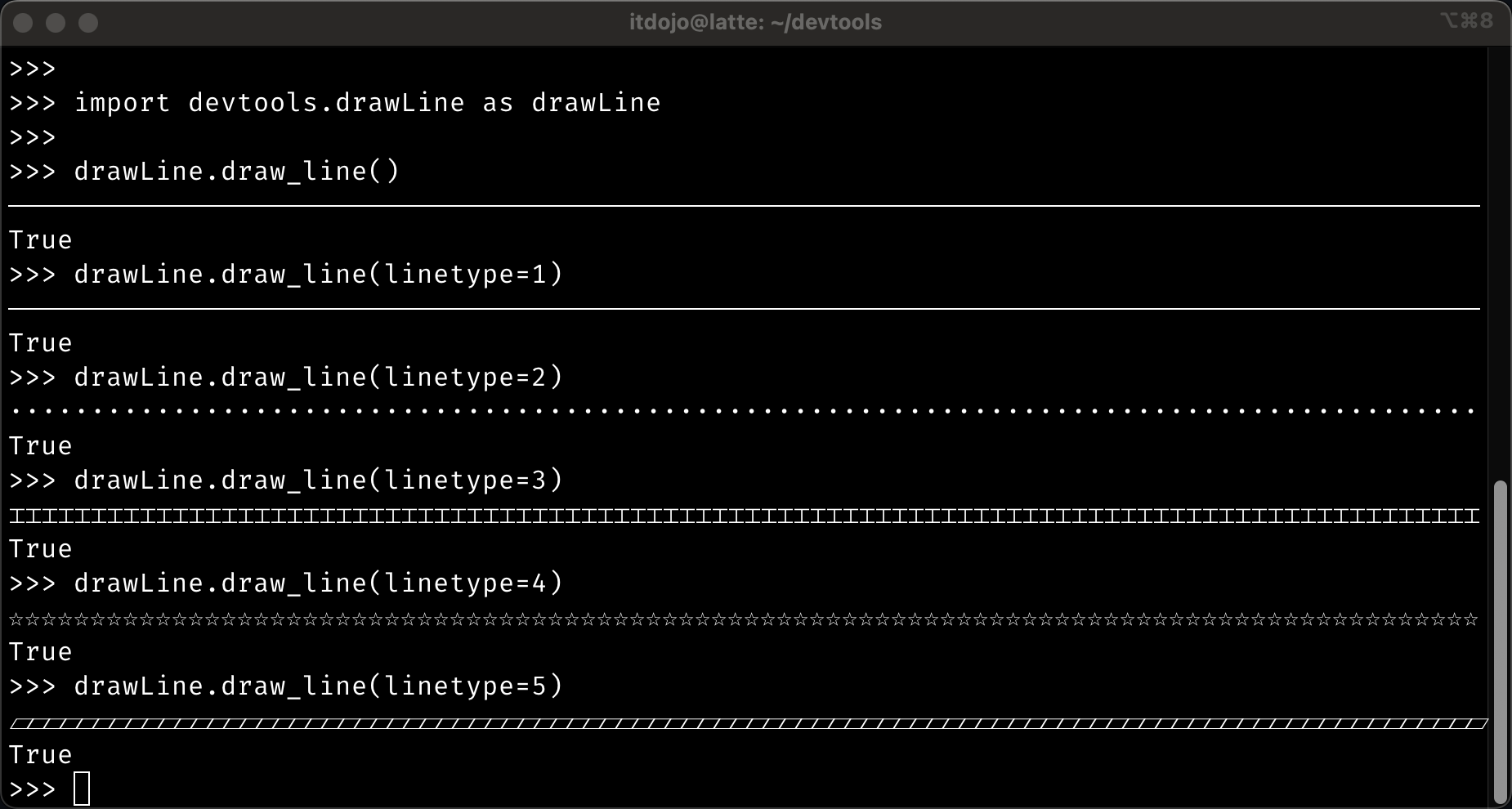
getOS
Returns the OS the script is running on (Windows, MacOS, Linux). I use it to determine if my script can continue (Example: if my script will only run on Linux). getOS only returns the generic OS name ("Windows", "Linux", "Darwin" (MacOS), etc.), it's up to you to do decide what to do with that info in your script.
How to use getOS
import devtools.getOS as getOS

getOS.os_is()
macFormatter
Returns a MAC address in the format you desire, regardless of the input format you feed it. If you give it aa-bb-cc-dd-ee-ff it can return aa:bb:cc:dd:ee:ff or aabbccddeeff or aa.bb.cc.dd.ee.ff, etc. It can also toggle case if desired.
Note:
macFormatterdoes not currently validate the sanity of your input (specifically, length and non-hex characters). I plan add that functionality later. So, for now, you'll need to be careful if you are manually entering MAC addresses.
How to use macFormatter
import devtools.macFormatter as macFormatter

macFormatter.format_mac_address(mac, case, seperator)| Operator | Valid Options |
|---|---|
**mac** (Required) |
MAC address in any format ("aa:bb:cc:dd:ee:ff", "aabbccddeeff", "aa-bb-cc-dd-ee-ff", "aa.bb.cc.dd.ee.ff") |
case (Optional) |
The case retured to you. "upper" and "lower" (default) |
seperator (Optional) |
The seperator returned to you. ":" (default), "-", ".", "" and None are valid options. |
Example:
import devtools.macFormatter as macFormatter

macFormatter.format_mac_address("aa-bb-cc-11-22-33", case="upper", seperator=":")

# Returns
'AA:BB:CC:11:22:33'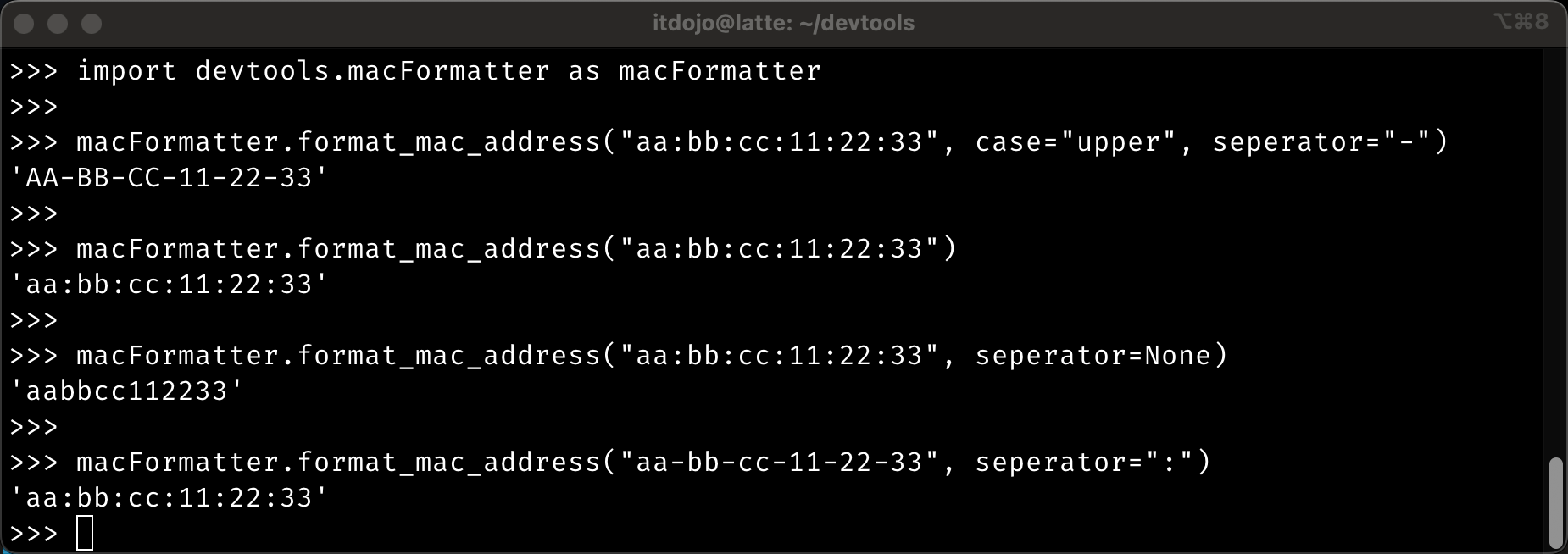
ouiLookup
Given a MAC address, it will use the IEEE oui.txt file to look up the name of the vendor. If oui.txt is not available in the local directory, the module will download it from the Internet. This may cause a brief delay the first time it is used (oui.txt is just under 6MB). Subsequent lookups are fast because oui.txt is stored locally. If desired, you can pre-download the oui.txt file from the IEEE using wget http://standards-oui.ieee.org/oui/oui.txt.
Note: The IEEE regularly updates oui.txt. You should consider deleting your locally cached copy every couple of months to force your scripts to download a new copy.
How to use ouiLookup
The IEEE oui.txt file list OUIs in the format "AA-BB-12" and "AABB12". I wrote this function to look up the "AABB12" format. Regardless of your input the MAC address will be formatted correctly (for the lookup to use it) by the module. You do not need to worry about formtting your input to the function. See examples below.
Example:
import devtools.ouiLookup as ouiLookup

ouiLookup.oui_lookup("aa:bb:cc:11:22:33")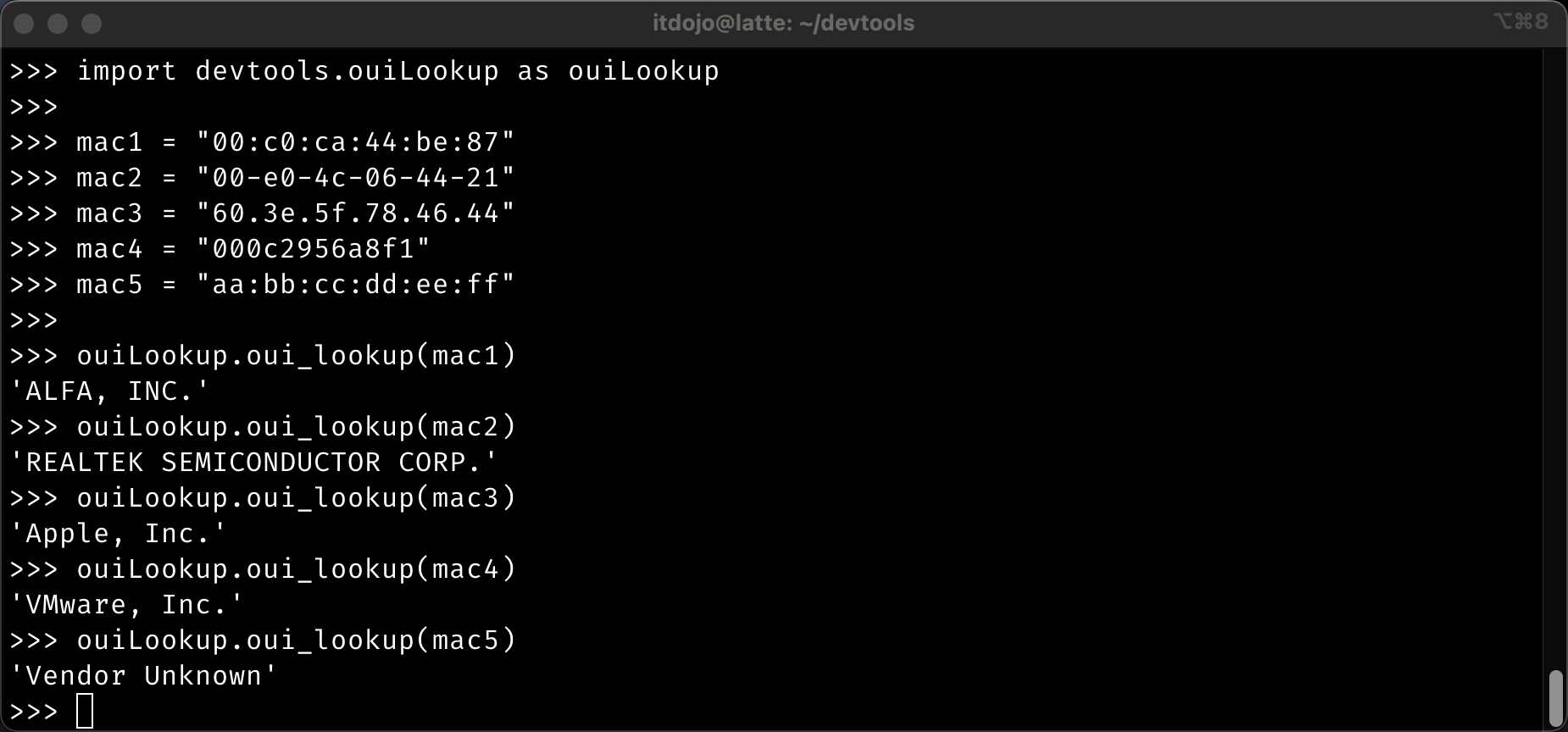
rootCheck
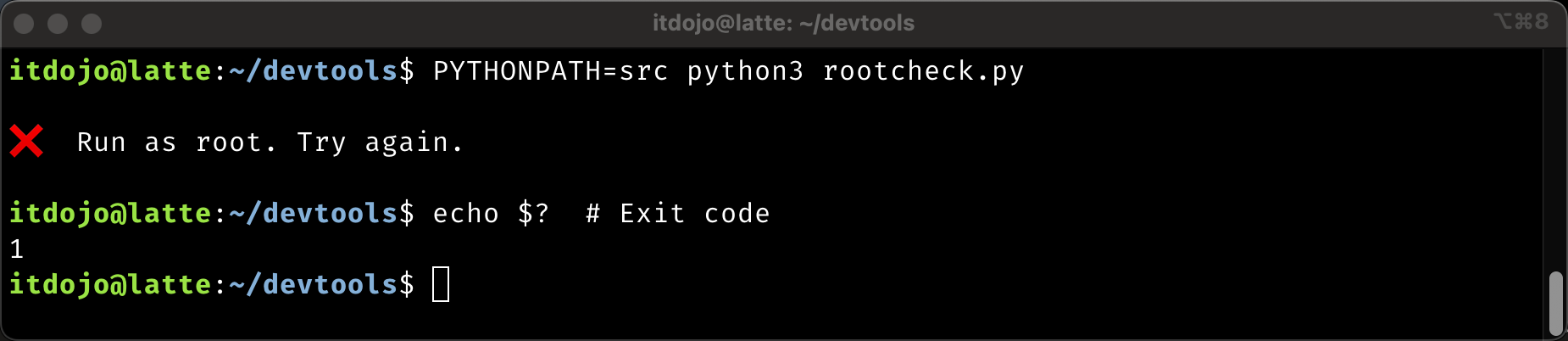
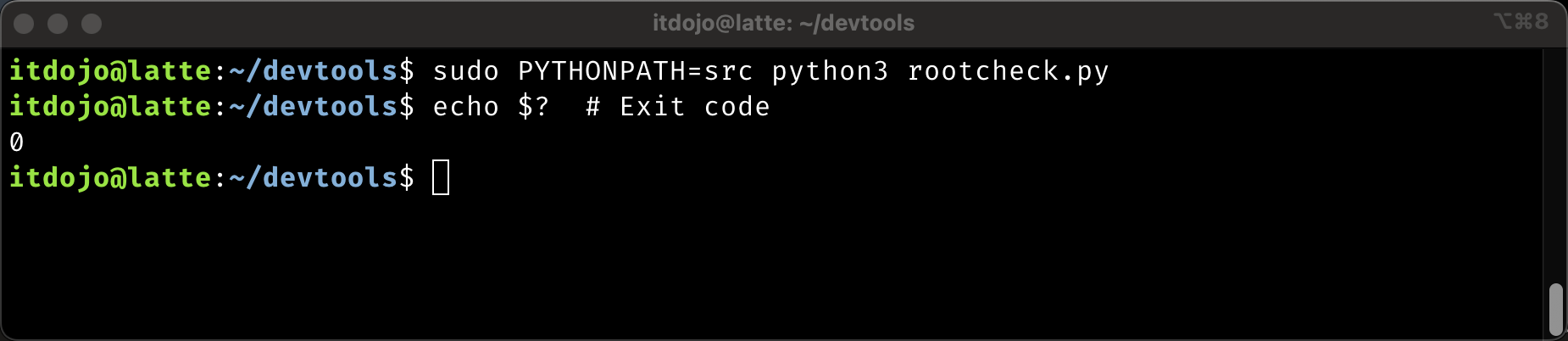
Checks to see if the script is running as root. If not root, it will exit the script you are running (so don't use this if you script does not need to be root). I figure you won't be checking for root if you don't need your script to run as root so this module will kill your script if you're not root.
How to use rootCheck
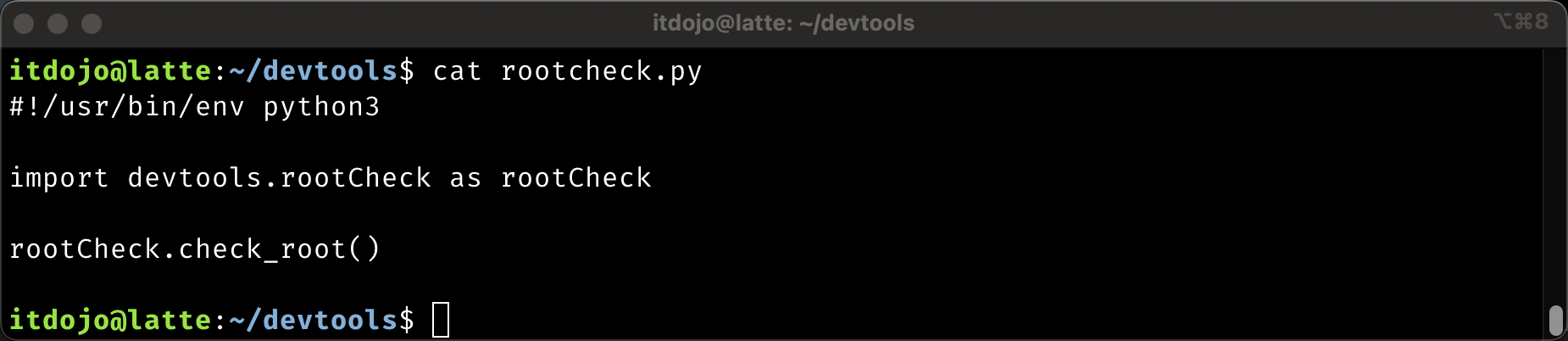
import devtools rootCheck as rootCheck

rootCheck.check_root()
Example rootcheck.py script:
Running the script as non-root user:
Running the script as root user:
shellCommand
==This needs to be rewritten. What I have done is A) not detailed enough and B) probably too complex for the commands I typically run. I need to change this to use subprocess.run() and check the returncode rather than the length of stderr and stdout. It is possible that certain scripts/commands might generate outoput to both stderr and stdout. If that happend with what I have here it will produce a false positive. Live and learn...==
When you provide a command as a string (Ex. "ip link set {iface} down") to this module it executes the command and return the result (both STDOUT and STDERR).
The run_shell_cmd(cmd) function return a list with two items. Item 0 is the result of STDOUT and item 1 is the result of STDERR. If there was no error, STDERR will be '' and and have a length of 0. If there was an error, STDOUT will be '' and have a length of 0.
You can also use sequence unpacking to store the two values as strings (rather than one value in a list). See examples below.
If you don't care about the output and just want to know if the command succeeded or failed, check check the length of stdout and/or stderr. If stderr has a non-zero length, there was an error in the command.
import devtools.shellCommand as shellCommand

iface = "enp1s0"
cmd1 = f"ip addr show dev {iface}"

# object returned is a list with two items
result = shellCommand.run_shell_cmd(cmd1)

# or

# Sequence unpacking, objects are type(str)
stdout, stderr = shellCommand.run_shell_cmd(cmd1)

# Test result if you don't care about the output and just want to know if you has success or failure.
if len(stderr) != 0:
    print("Command failed.")
else:
    print("Command success.")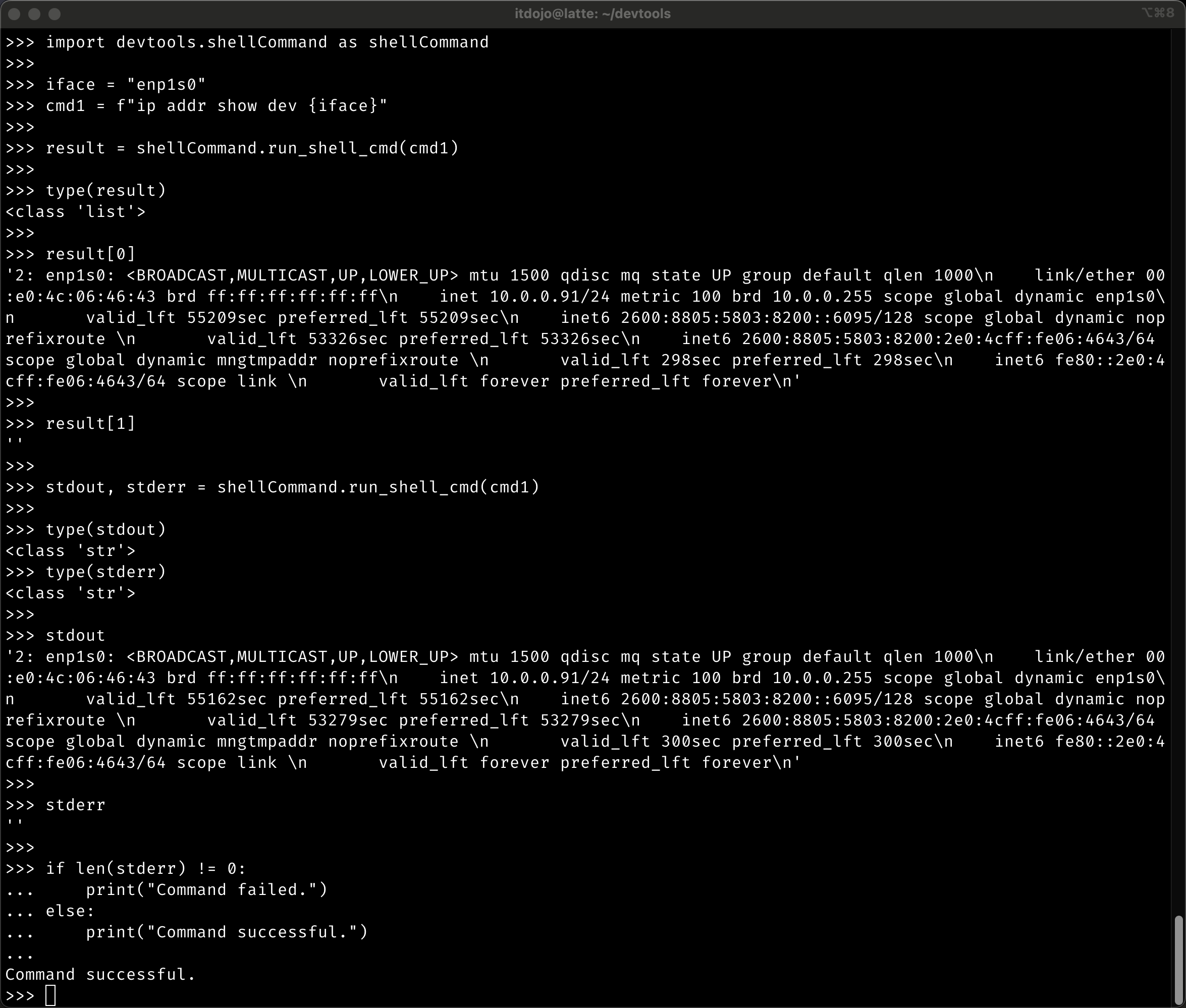
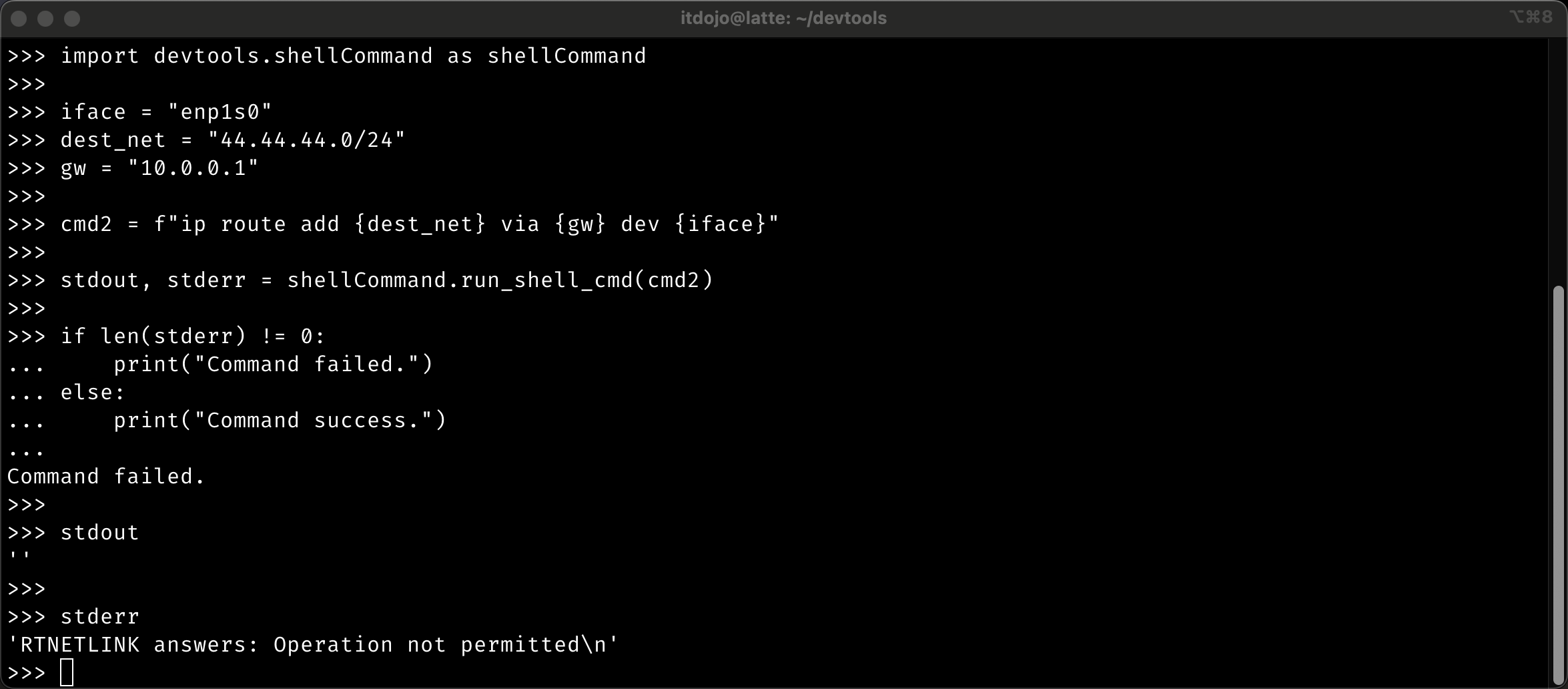
Here is a failure example (insufficient privilege):
wifiSelector
wifiSelector has two functions:
get_wlan_interfaces()- Returns all available wlan interfaces as a dictionary object with the key:value pairs in the form of 'interface':'mac_address'.- Example: {'wlx00c0ca73bd44': '00:c0:ca:73:bd:44', 'wlx00c0ca448873': '00:c0:ca:44:88:73', 'wlp3s0': 'a8:93:4a:ac:60:44'}
- If your script just needs to get the wlan interfaces and/or their MAC addresses, use
get_wlan_interfaces().
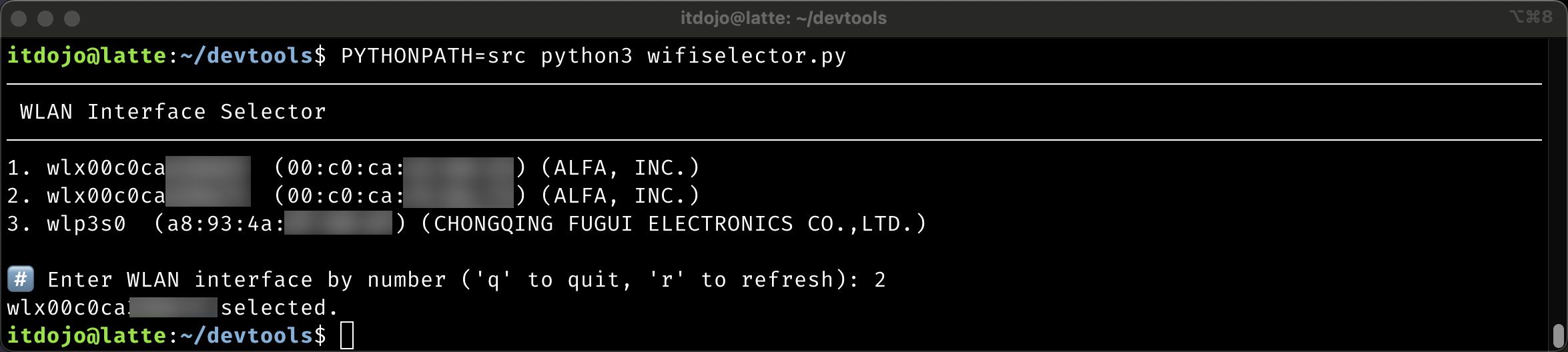
interface_selector(showmac=True, linetype=1)- Generates a numbered list of wlan interfaces for the user to select from.- If your script needs to interact with the user to have them select a wlan interface for whatever you are doing, use
interface_selector(). This function callsget_wlan_interfaces()so you do not need to do them both in your script.
- If your script needs to interact with the user to have them select a wlan interface for whatever you are doing, use
interface_selector() Function parameters
| Parameter | Valid Options | Description |
|---|---|---|
showmac (Optional) |
Boolean (True, or False) |
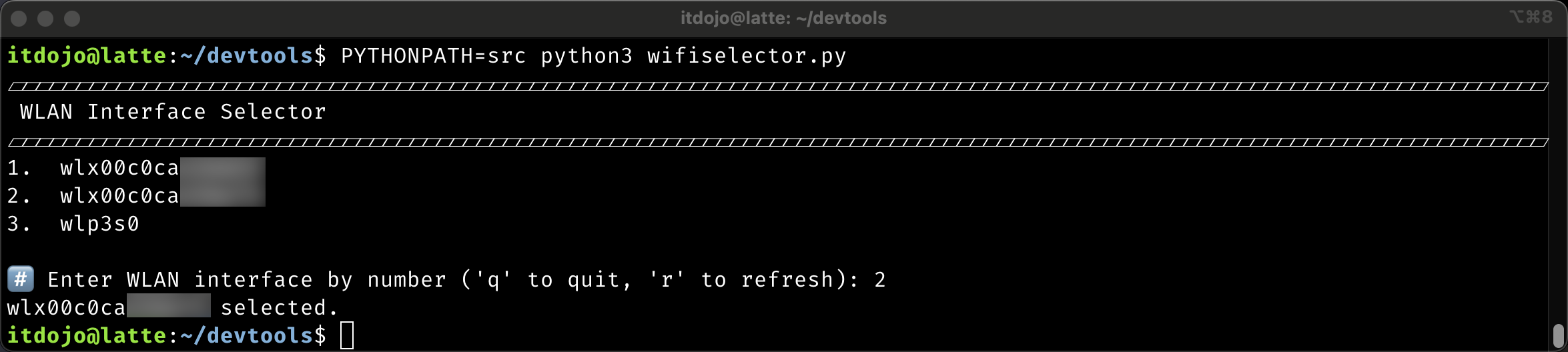
If True (default), the interfaces will be displayed along with the MAC address and the OUI vendor name. If False, only the interface is displayed. |
linetype (Optional) |
1 through 5 |
Determines the type of line used as a sepearator. The default is a horizontal line. See drawLine for details on the line options. |
Valid User Input
| Input | Valid Options | Description |
|---|---|---|
1 through n |
An integer | n is the highest total number of wlan interfaces you have. Depending on how many wlan interfaces you have. |
| (q)uit and (r)efresh | q and r |
q quits without making a selection and returns None. r refreshes the list (for when you run your script before plugging in your USB wlan adapter). |
| Bad input | Anything but 1 through n, q or r |
User is only permitted three (3) erroneous inputs before the function gives up and returns None |
interface_selector() retrieves a list of wlan interfaces on the system. It only works on Linux systems that have a /sys/class/net directory. It also has a function to create and display list of the available interfaces to the user, prompting the user to choose an interface by entering the interface number (1, 2, 3, etc.).
As an example: Interface wlan2 may be listed as item #3 on the list. To choose wlan2 from the list of presented interfaces, you would enter the number on the list (3), not the number of the interface (2).
Optionally, this module will also show the interface MAC address and OUI vendor name.
How to use wifiSelector.get_wlan_interfaces()
Syntax for get_wlan_interfaces()
import devtools.wifiSelector as wifiSelector

interfaces = wifiSelector.get_wlan_interfaces()**get_wlan_interfaces()** Example:

How to use wifiSelector.interface_selector()
Syntax for interface_selector():
import devtools.wifiSelector as wifiSelector

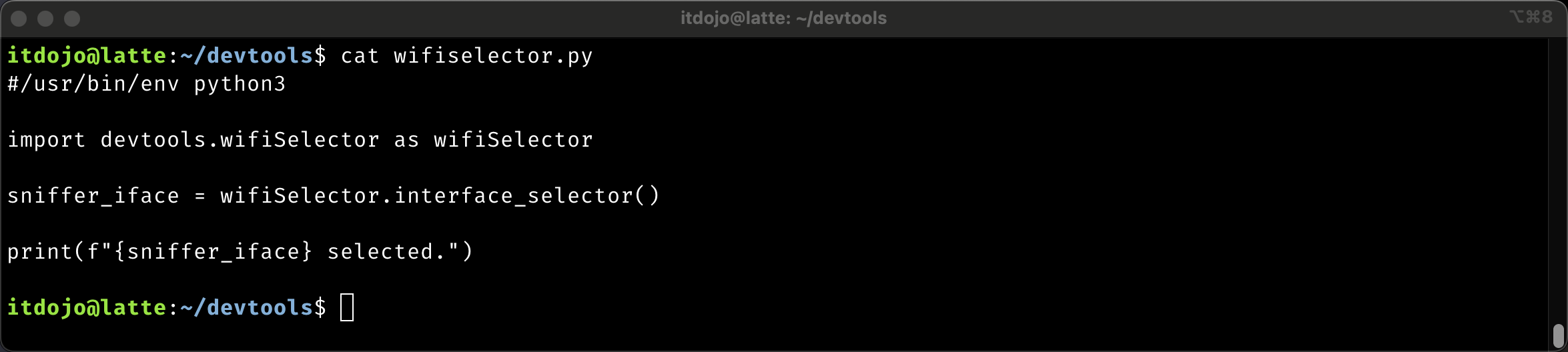
sniffer_iface = wifiSelector.interface_selector()

print(sniffer_iface)**interface_selector()** Example Script #1:
**interface_selector()** Output from Example Script #1:
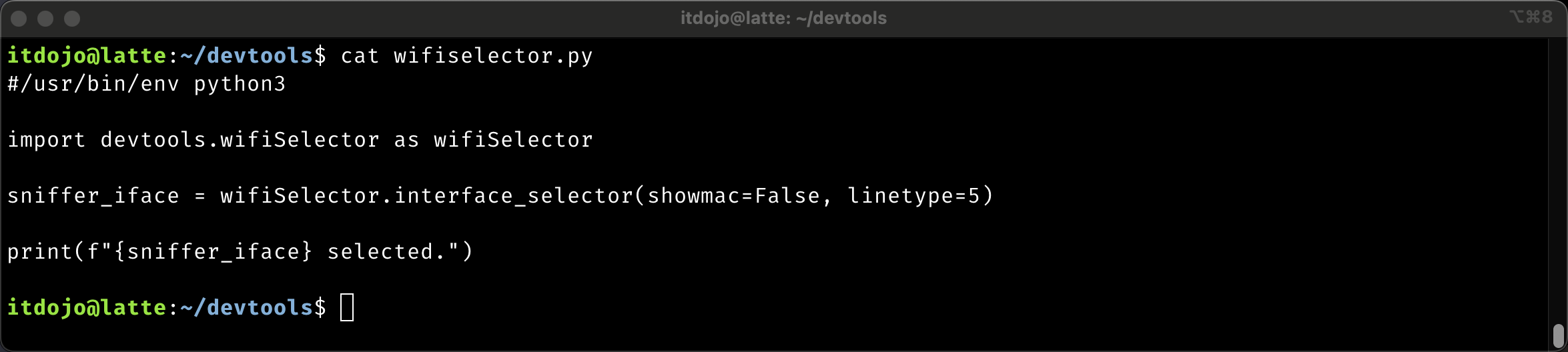
**interface_selector()** Example Script #2: (showmac set to False and linetype set to 5)
**interface_selector()** Output from Example Script #2:
networkCommands
- Coming soon...