




A swipeable container card for Home Assistant that allows you to add multiple cards and swipe between them.
Note
This card is under active development with frequent updates and new features being added regularly. Check the Releases page for the latest improvements and updates.
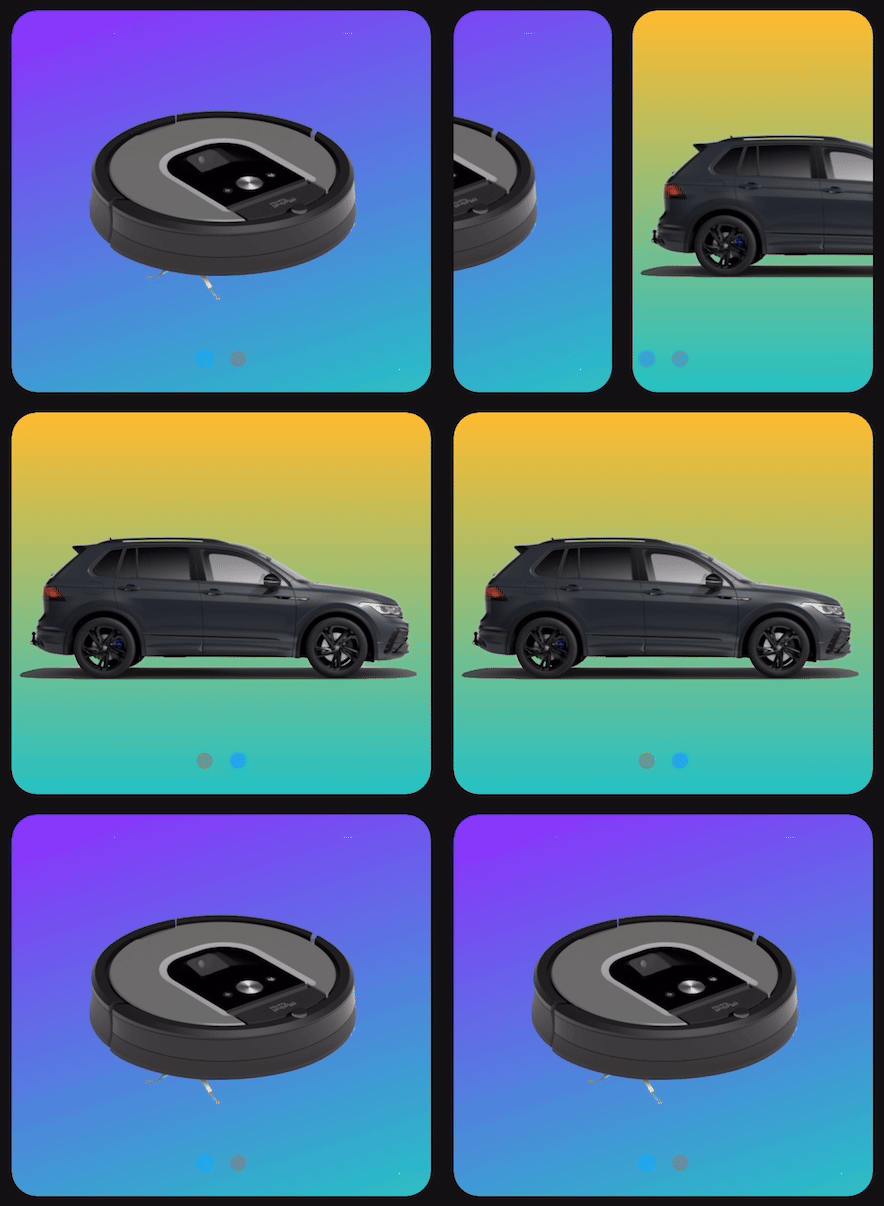
Simple Swipe Card is a customizable container for Home Assistant that lets you place multiple cards in a single space and navigate between them with intuitive swipe gestures. The card optimizes dashboard space by grouping related information while providing a mobile-friendly interface with smooth touch and mouse navigation. It features pagination indicators, adjustable card spacing, and full visual editor support. Ideal for creating room-specific views, device dashboards, or organizing related information without cluttering your dashboard, Simple Swipe Card enhances both functionality and user experience with minimal configuration.
- Swipe between multiple cards
- Pagination dots
- Configurable card spacing
- Visual editor support
- Multiple loop modes
- Support for both horizontal and vertical swiping
- Template Support: Use Jinja2 or JavaScript templates for dynamic configuration values
- Automatic Slideshow (Auto-Swipe):
- Cards can cycle automatically at a user-defined interval
- Auto-swipe intelligently pauses during manual user interaction (e.g., manual swipe, pagination click) and resumes after 5 seconds (not configurable)
- Integrates with
loop_mode: infinitefor continuous cycling or uses a "ping-pong" effect ifloop_mode: noneis set
- Reset After Timeout: Automatically start at and return to a target card after inactivity. When enabled, the card begins at the specified reset target and returns to it after user inactivity
- State Synchronization: Two-way sync with Home Assistant
input_selectandinput_numberentities
Simple Swipe Card offers two distinct view modes to suit different use cases:

Displays one card at a time with full support for all features. This is the traditional card view where users swipe to navigate between individual cards.

Displays multiple cards simultaneously with partial visibility of adjacent cards, similar to a carousel. Users can see preview portions of neighboring cards while focusing on the current card.
Note
Vertical swiping is not available in carousel mode (horizontal only).
Simple Swipe Card has two ways to handle swiping:
Each swipe moves exactly one card. This gives you precise control and works with all loop modes.
Swipe multiple cards at once based on how fast and far you swipe. A quick swipe can jump several cards while a gentle swipe moves just one. It feels natural and smooth, like swiping through photos on your phone.
Note
Free swipe behavior only works when loop_mode is set to infinite.
- Open HACS
- Search for "Simple Swipe Card" and install it
Or click this button to open the repository page in HACS:

- Open HACS
- Click on the three dots in the top right corner
- Select "Custom repositories"
- Add this repository URL (https://github.com/nutteloost/simple-swipe-card)
- Click "Add"
- Search for "Simple Swipe Card" and install it
Note
As of v2.4.0, Simple Swipe Card works completely offline using Home Assistant's built-in dependencies, with no external CDN requirements.
- Download
simple-swipe-card.jsfrom the latest release or from the/buildfolder in the main repository - Copy it to
config/www/simple-swipe-card/simple-swipe-card.js - Add the following to your configuration.yaml:
lovelace:
  resources:
    - url: /local/simple-swipe-card/simple-swipe-card.js
      type: module
- Restart Home Assistant
The Simple Swipe Card includes a visual editor that appears when you add or edit the card through the Home Assistant UI. Features include:
- Display Options:
- Single or Carousel view mode
- Simple number input for card spacing
- Selection for swipe direction (horizontal/vertical)
- Visual on/off toggle for pagination dots
- Advanced Options section:
- Selection for loop behavior
- Toggle for enabling auto-swipe
- Number input for auto-swipe interval (in milliseconds)
- Reset after timeout configuration options
- State entity selection for state synchronization
- Cards section:
- Reorder cards for swiping order
- Visibility condition indicators for conditional cards
- Real-time preview of changes
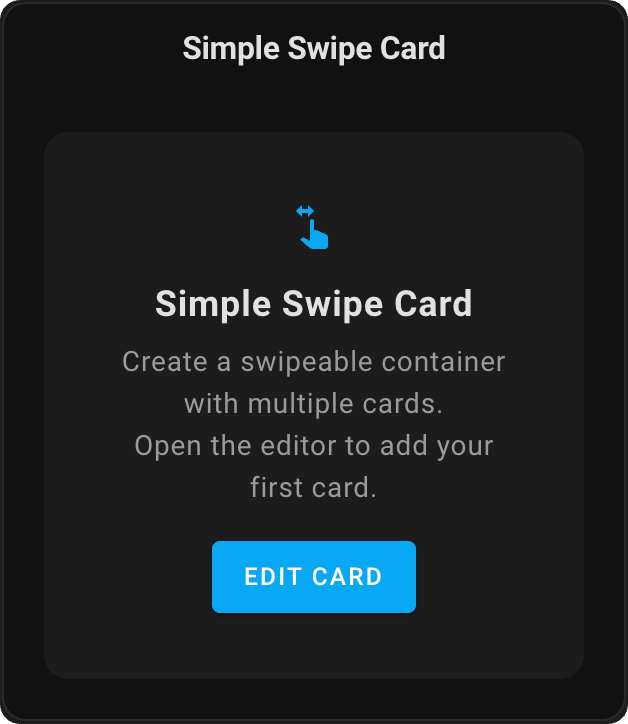
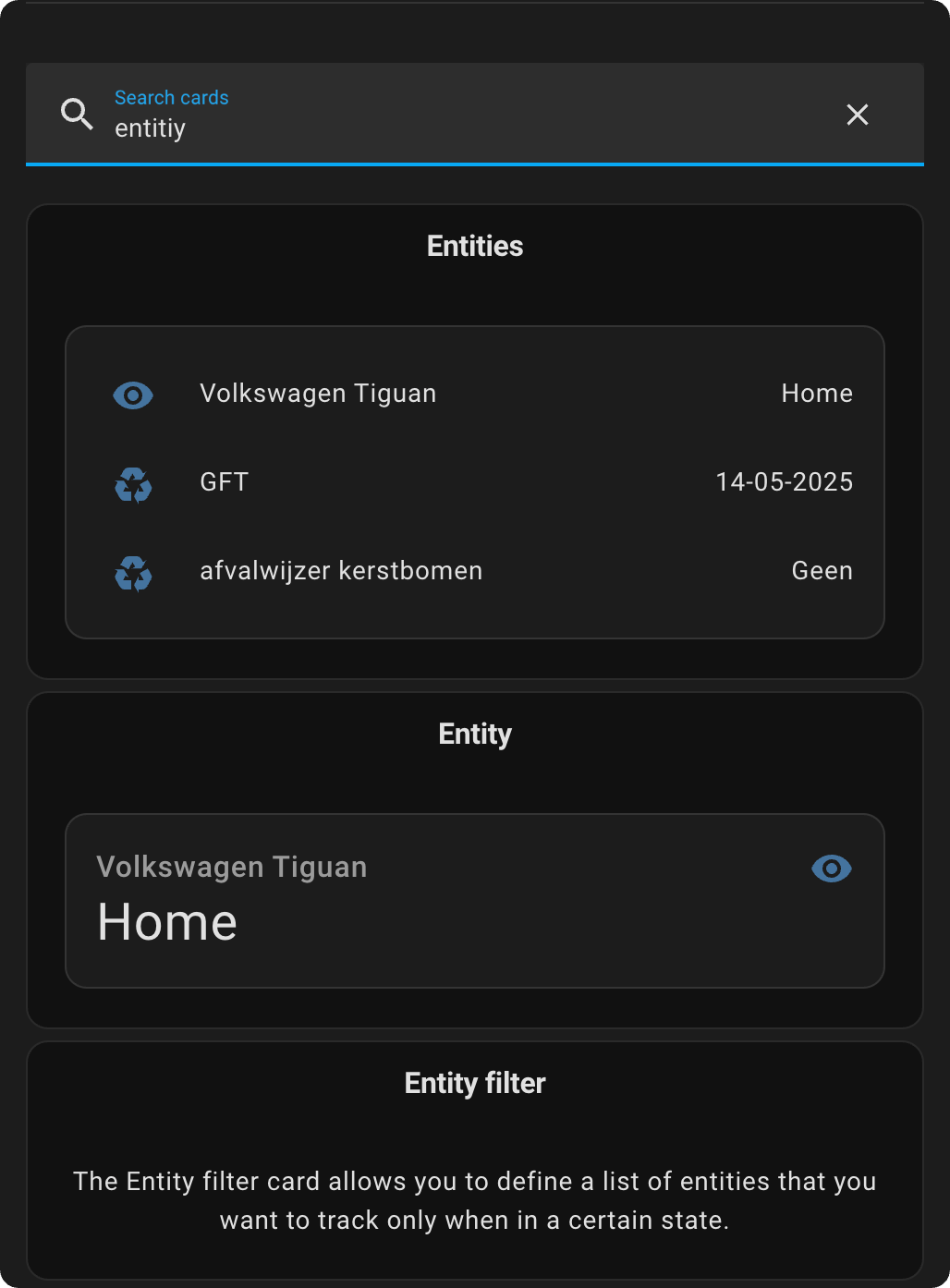
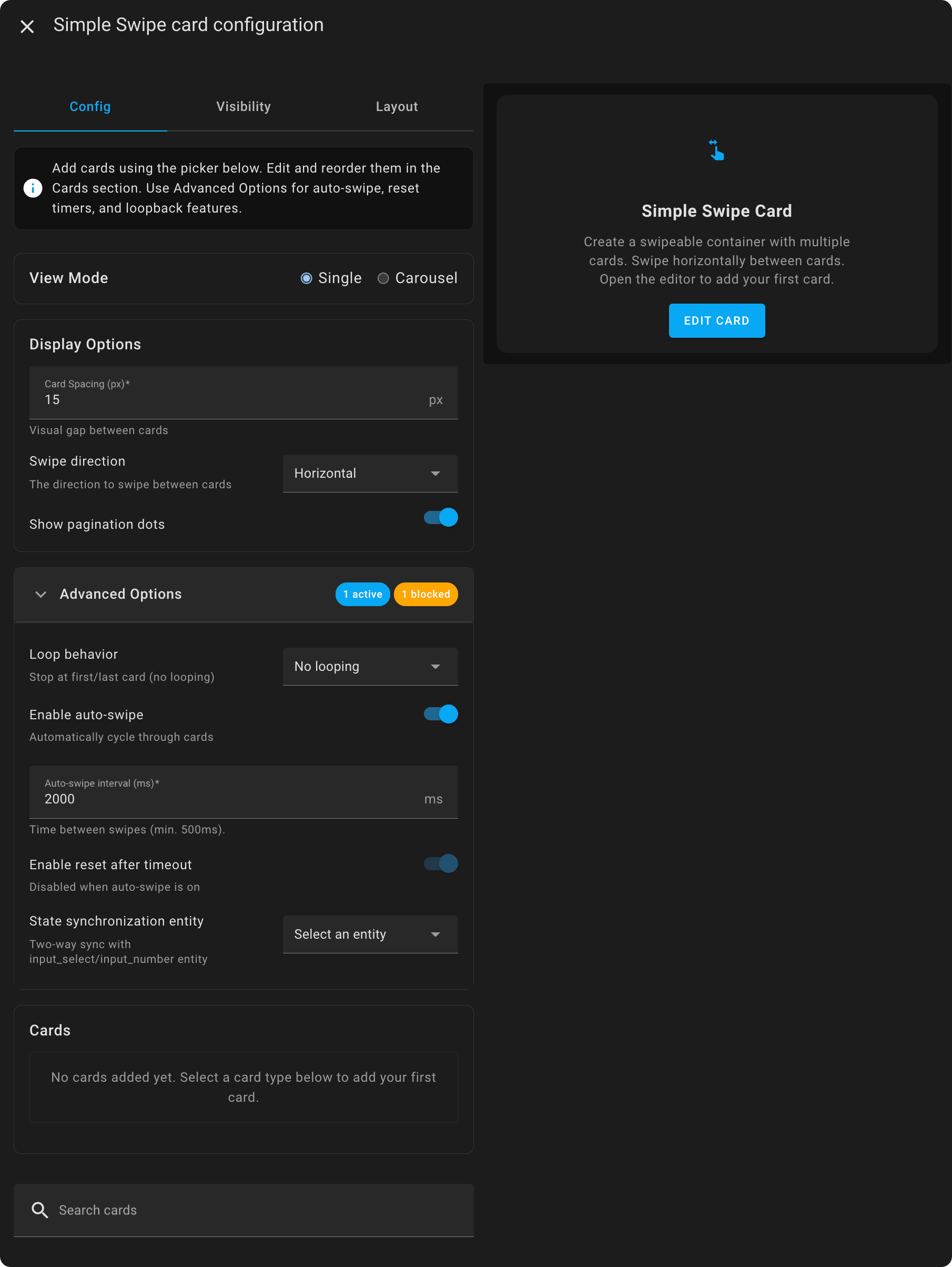
You can search for cards you want to add to the Simple Swipe Card in the search bar. Click on them to add them to the configuration.
You can edit the added cards by clicking on the ✏️ icon.
This card can be configured using the visual editor or YAML.
Important
When using swipe_direction: "vertical" without configuring grid_options in your dashboard layout, the card automatically applies a default height of 250px to prevent layout issues. For full height control with vertical swiping, configure grid_options in the layout tab of the visual editor or add it to the Yaml configuration
| Name | Type | Default | Description |
|---|---|---|---|
cards |
list | Required | List of cards to display |
view_mode |
string | 'single' | View mode for the card. Options: 'single' or 'carousel' |
card_min_width |
number | 200 | Minimum width per card in pixels (50-500px). Number of visible cards adjusts automatically based on screen size. Only available in carousel mode |
auto_height |
boolean | false | Automatically adjust card height to match each card's content. Only available with single view mode, horizontal swiping, and non-infinite loop modes |
show_pagination |
boolean | true | Show/hide pagination dots |
auto_hide_pagination |
number | 0 | Auto-hide pagination dots after inactivity in milliseconds (0 = disabled, max 30000ms). Dots reappear on hover/touch |
card_spacing |
number | 15 | Space between cards in pixels |
loop_mode |
string | 'none' | Loop behavior for navigation. Options: 'none' (stop at edges), 'loopback' (jump to start/end), 'infinite' (continuous loop) |
swipe_direction |
string | 'horizontal' | Direction for swiping. Options: 'horizontal' or 'vertical'. Only 'horizontal' is supported in carousel mode |
swipe_behavior |
string | 'single' | Swipe behavior mode. Options: 'single' (one card at a time) or 'free' (multi-card based on velocity/distance). Free mode only available with infinite loop mode |
swipe_effect |
string | 'slide' | Visual transition effect. Options: 'slide', 'bounce', 'spring', 'instant', 'fade', 'flip', 'cube', 'coverflow', 'creative', 'cards', 'reveal', 'push', 'zoom', 'swing'. Advanced effects (fade through swing) only work in single mode |
enable_auto_swipe |
boolean | false | When enabled, the card will automatically swipe between slides |
auto_swipe_interval |
number/template | 2000 | Time between automatic swipes in milliseconds (minimum 500ms). Only active if enable_auto_swipe is true. Supports Jinja2 and JavaScript templates |
enable_reset_after |
boolean | false | Enable automatic return to target card after inactivity |
reset_after_timeout |
number/template | 30000 | Time in milliseconds before resetting (minimum 5000ms). Supports Jinja2 and JavaScript templates |
reset_target_card |
number/template | 1 | Index of card to use as initial card and to return to after inactivity (1 = first card). Supports Jinja2 and JavaScript templates |
state_entity |
string | null | Entity ID for state synchronization. Supports input_select and input_number entities |
enable_backdrop_filter |
boolean | false | Enable support for CSS backdrop-filter effects (blur, etc.) in card-mod. When enabled, disables clip-path to allow backdrop-filter to work. Only enable if using backdrop-filter: blur() in card-mod CSS |
Warning
Infinite loop mode creates duplicate cards for a true seamless scrolling experience which can be resource-intensive with camera cards or complex cards. Consider using loop_mode: loopback for better performance
Note
Auto Height Compatibility: The auto_height feature is only available when using:
- View Mode: Single (not carousel)
- Swipe Direction: Horizontal (not vertical)
- Loop Mode: None or Loopback (not infinite)
When switching to an incompatible mode, auto_height will be automatically removed from your configuration.
Note
Backdrop Filter Support: The enable_backdrop_filter option allows CSS backdrop-filter effects (blur, etc.) to work with card-mod. Due to browser limitations, backdrop-filter conflicts with clip-path, which is used for dropdown overflow. When enabled:
- ✅ Backdrop-filter effects work correctly
- ❌ Dropdown menus do not overflow card boundaries
Only enable this option if you're using backdrop-filter: blur() in your card-mod CSS and need it to work. The toggle is available in the Advanced Options section of the visual editor.
type: custom:simple-swipe-card
cards:
  - type: weather-forecast
    entity: weather.home
  - type: entities
    entities:
      - sensor.temperature
      - sensor.humidity
  - type: media-control
    entity: media_player.living_room
show_pagination: true
auto_hide_pagination: 3000
card_spacing: 15
loop_mode: infinite
swipe_direction: horizontal
swipe_behavior: single
enable_auto_swipe: false
auto_swipe_interval: 3000
enable_reset_after: true
reset_after_timeout: 45000
reset_target_card: 1
state_entity: input_select.dashboard_cardsSimple Swipe Card supports both Jinja2 and JavaScript templates for dynamic configuration. Use templates to set reset_target_card, reset_after_timeout, or auto_swipe_interval based on entity states, time, or user context.
Use Jinja2 syntax to create dynamic values based on entity states or time calculations:
reset_target_card: "{{ states('sensor.your_sensor') | int }}"
reset_after_timeout: "{{ 30000 if is_state('input_boolean.quick_mode', 'on') else 60000 }}"Use JavaScript templates for more complex logic. JavaScript templates have access to user (with user.name and user.id), states object, and hass object. Wrap your code in [[[ and ]]]:
reset_target_card: |
  [[[
    if (user.name === 'Admin') {
      return 2;
    }
    return 1;
  ]]]
Templates are evaluated dynamically and update automatically when referenced entities change.
Simple Swipe Card can synchronize its current position with Home Assistant entities (helpers), enabling external control and automation integration through two-way binding. This powerful feature allows for dynamic, automated dashboard interactions based on events, time, or other conditions.
Input Select (input_select)
- Options are mapped by position to visible cards (option 1 = card 1, option 2 = card 2, etc.)
- Changing the input_select value navigates to the corresponding card
- Swiping to a card automatically updates the input_select value
Input Number (input_number)
- Uses 1-based indexing where 1 = first card, 2 = second card, etc.
- Changing the input_number value navigates to the corresponding card
- Swiping to a card automatically updates the input_number value
- More options than cards: Extra options are ignored and cannot be selected.
- Fewer options than cards: Only cards corresponding to available options can be controlled externally. Cards without corresponding options can still be reached through manual swiping but won't update the entity.
- Visibility conditions: State synchronization works with visible cards only. If cards are hidden due to visibility conditions, the mapping adjusts automatically to match only the currently visible cards.
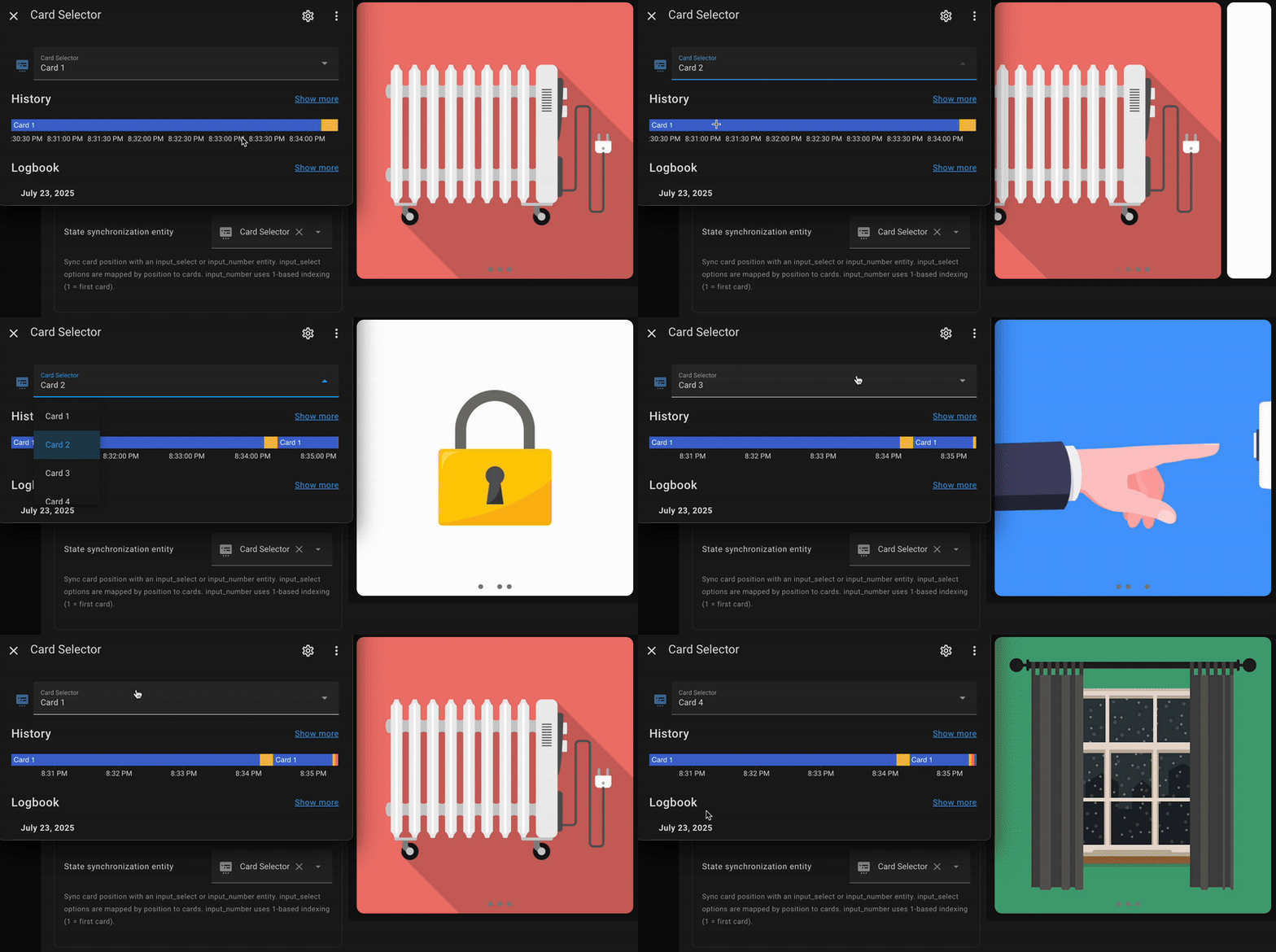
Security Camera Alert: When motion is detected at your front door, the Simple Swipe Card can automatically switch to display the camera feed, providing immediate visual confirmation of activity without requiring manual navigation. This ensures critical security events receive instant attention when they matter most.
Example automation:
automation:
  - alias: "Switch Simple Swipe Card slide to Camera on Motion"
    trigger:
      - platform: state
        entity_id: binary_sensor.front_door_motion
        to: "on"
    action:
      - service: input_number.set_value
        target:
          entity_id: input_number.dashboard_card_selector
        data:
value: 3 # Assuming camera card is the 3rd cardIndividual cards within the Simple Swipe Card can be conditionally shown or hidden using visibility conditions. Multiple conditions use AND logic (all must be true).
Important
Visibility conditions are added to individual cards within your Simple Swipe Card configuration, not to the Simple Swipe Card configuration itself.
Due to Home Assistant's architecture, the card picker may not load immediately when first opening the Simple Swipe Card editor after clearing browser cache.
Simple Fix: If you see an empty card picker section:
- Click the "+" (Add Card) button on your dashboard once
- Close the dialog that opens
- Return to editing your Simple Swipe Card - the card picker will now work perfectly
This only needs to be done once per browser session.
Simple Swipe Card intercepts mouse and touch events to enable swipe gestures, which can interfere with interactive iframe-based cards that require direct user interaction.
Affected card types include:
- Custom cards that embed external websites or services
- Cards with embedded video players requiring direct controls
- Third-party widgets that use iframe elements
- Any card that relies on complex mouse interactions
The Simple Swipe Card provides extensive customization capabilities through two primary methods: Home Assistant themes and card-mod styling. This flexible approach allows you to establish consistent styling across all card instances while maintaining the ability to customize individual cards as needed.
Apply styling globally across all instances of Simple Swipe Card by adding theme variables to your Home Assistant configuration. This method is ideal for maintaining consistent styling throughout your dashboard.
To apply these customizations, add them to your theme in your configuration.yaml:
frontend:
  themes:
    simple_swipe_theme:
      # Your existing theme properties
      primary-color: '#2196f3'

      # Simple Swipe Card customizations
      simple-swipe-card-pagination-dot-active-color: '#ff5722'
      simple-swipe-card-pagination-dot-size: '10px'
      simple-swipe-card-pagination-dot-spacing: '6px'
      simple-swipe-card-transition-speed: '0.4s'
      simple-swipe-card-pagination-background: 'rgba(0, 0, 0, 0.1)'
# Add any other variables from the complete CSS referenceApply styling directly to individual card instances using card-mod. This method provides maximum flexibility and allows for unique styling of specific cards. Card-mod styles take precedence over theme variables, enabling you to override global themes for specific instances.
type: custom:simple-swipe-card
cards:
  - type: weather-forecast
    entity: weather.home
  - type: entities
    entities:
      - sensor.temperature
card_mod:
  style: |
    :host {
      --simple-swipe-card-pagination-dot-active-color: #ff5722;
      --simple-swipe-card-pagination-dot-size: 12px;
      --simple-swipe-card-transition-speed: 0.5s;
      /* Add any other variables from the complete CSS reference */
    }
Important
When both theme variables and card-mod styling are present, the following hierarchy applies:
- Card-mod styles (highest priority)
- Theme variables
- Default card styling (lowest priority)
All CSS variables listed below can be used in both Home Assistant themes and card-mod styling configurations. These variables provide comprehensive control over the visual appearance and behavior of the Simple Swipe Card.
--simple-swipe-card-pagination-dot-size: 8px;                                   /* Diameter of inactive pagination dots */
--simple-swipe-card-pagination-dot-active-size: 8px;                            /* Diameter of the active pagination dot */
--simple-swipe-card-pagination-dot-active-color: var(--primary-color, #03a9f4); /* Color of the currently selected dot */
--simple-swipe-card-pagination-dot-inactive-color: rgba(127, 127, 127, 0.6);    /* Color of inactive pagination dots */
--simple-swipe-card-pagination-dot-spacing: 4px;                                /* Horizontal/vertical space between dots */
--simple-swipe-card-pagination-dot-active-opacity: 1;                           /* Opacity of the active pagination dot */
--simple-swipe-card-pagination-dot-inactive-opacity: 1; /* Opacity of inactive pagination dots */--simple-swipe-card-pagination-border-radius: 50%; /* Border radius of dots (50% = circle, 0px = square) */
--simple-swipe-card-pagination-dot-active-border-radius: 50%; /* Border radius of active dot (can be different from inactive) */--simple-swipe-card-pagination-dot-border-width: 0px; /* Border width for inactive dots */
--simple-swipe-card-pagination-dot-border-color: transparent; /* Border color for inactive dots */
--simple-swipe-card-pagination-dot-border-style: solid; /* Border style for inactive dots */
--simple-swipe-card-pagination-dot-active-border-width: 0px; /* Border width for active dot */
--simple-swipe-card-pagination-dot-active-border-color: transparent; /* Border color for active dot */
--simple-swipe-card-pagination-dot-active-border-style: solid; /* Border style for active dot */--simple-swipe-card-pagination-dot-box-shadow: none; /* Box shadow for inactive dots */
--simple-swipe-card-pagination-dot-active-box-shadow: none; /* Box shadow for active dot */--simple-swipe-card-pagination-dot-hover-color: rgba(127, 127, 127, 0.6); /* Color when hovering over inactive dots */
--simple-swipe-card-pagination-dot-hover-opacity: 1; /* Opacity when hovering over inactive dots */
--simple-swipe-card-pagination-dot-hover-border-color: transparent; /* Border color when hovering over inactive dots */
--simple-swipe-card-pagination-dot-hover-transform: none; /* Transform effect when hovering (e.g., scale(1.2)) */
--simple-swipe-card-pagination-dot-hover-box-shadow: none; /* Box shadow when hovering over inactive dots */
--simple-swipe-card-pagination-dot-active-hover-color: var(--primary-color); /* Color when hovering over active dot */
--simple-swipe-card-pagination-dot-active-hover-opacity: 1; /* Opacity when hovering over active dot */
--simple-swipe-card-pagination-dot-active-hover-border-color: transparent; /* Border color when hovering over active dot */
--simple-swipe-card-pagination-dot-active-hover-transform: none; /* Transform effect when hovering over active dot */
--simple-swipe-card-pagination-dot-active-hover-box-shadow: none; /* Box shadow when hovering over active dot */--simple-swipe-card-pagination-background: transparent; /* Background color of pagination container */
--simple-swipe-card-pagination-padding: 4px 8px; /* Padding around the pagination dots */
--simple-swipe-card-pagination-bottom: 8px; /* Distance from bottom edge (horizontal mode) */
--simple-swipe-card-pagination-right: 8px; /* Distance from right edge (vertical mode) */--simple-swipe-card-pagination-fade-duration: 600ms; /* Duration of each dot's fade animation */
--simple-swipe-card-pagination-animation-type: 'fade'; /* Animation pattern: 'fade', 'left-to-right', 'right-to-left', 'center-out', 'edges-in', 'random' */
--simple-swipe-card-pagination-animation-delay: 50ms; /* Delay between individual dot animations (ignored for 'fade' pattern) */
--simple-swipe-card-pagination-animation-easing: ease-out; /* CSS easing function for dot animations */--simple-swipe-card-transition-speed: 0.3s; /* Duration of slide transition animations */
--simple-swipe-card-transition-easing: ease-out; /* Easing function for slide animations */You can use any valid CSS transition timing function for simple-swipe-card-transition-easing:
# Example animation customizations
simple-swipe-card-transition-speed: '0.5s'                          # Slower animation
simple-swipe-card-transition-easing: 'ease-in-out'                  # Smooth in and out
simple-swipe-card-transition-easing: 'cubic-bezier(0.4, 0, 0.2, 1)' # Material Design easing
simple-swipe-card-transition-easing: 'linear'                       # Constant speed
simple-swipe-card-transition-easing: 'ease-in' # Slow start, fast endTransform your Simple Swipe Card with these stunning pagination dot designs. Each example showcases the power of the new CSS variables to create unique, professional-looking interfaces.
Note
Click on any example below to reveal the configuration code. Copy and paste the card_mod section into your Simple Swipe Card configuration.

card_mod:
  style: |
    :host {
      /* Pagination dots */
      --simple-swipe-card-pagination-dot-inactive-color: rgba(255, 255, 255, 0.1);
      --simple-swipe-card-pagination-dot-border-width: 1px;
      --simple-swipe-card-pagination-dot-border-color: rgba(255, 255, 255, 0.2);
      --simple-swipe-card-pagination-dot-size: 10px;

      /* Active pagination dot */
      --simple-swipe-card-pagination-dot-active-color: rgba(255, 255, 255, 0.3);
      --simple-swipe-card-pagination-dot-active-border-color: rgba(255, 255, 255, 0.4);
      --simple-swipe-card-pagination-dot-active-box-shadow:
        0 0 15px rgba(255, 255, 255, 0.3),
        inset 0 1px 0 rgba(255, 255, 255, 0.4);

      /* Hover effect */
      --simple-swipe-card-pagination-dot-hover-color: rgba(255, 255, 255, 0.2);
      --simple-swipe-card-pagination-dot-hover-transform: scale(1.1);

      /* Container */
      --simple-swipe-card-pagination-background: rgba(255, 255, 255, 0.1);
      --simple-swipe-card-pagination-padding: 8px 16px;
    }
card_mod:
  style: |
    :host {
      /* Pagination Dots */
      --simple-swipe-card-pagination-dot-inactive-color: #0a0a0a;
      --simple-swipe-card-pagination-dot-border-width: 1px;
      --simple-swipe-card-pagination-dot-border-color: #333;
      --simple-swipe-card-pagination-dot-size: 8px;

      /* Active pagination dot */
      --simple-swipe-card-pagination-dot-active-color: #00ff41;
      --simple-swipe-card-pagination-dot-active-size: 10px;
      --simple-swipe-card-pagination-dot-active-box-shadow:
        0 0 10px #00ff41,
        0 0 20px #00ff41,
        0 0 30px #00ff41,
        inset 0 0 5px rgba(0, 255, 65, 0.3);

      /* Hover effect */
      --simple-swipe-card-pagination-dot-hover-color: #00ffff;
      --simple-swipe-card-pagination-dot-hover-box-shadow:
        0 0 8px #00ffff;
      --simple-swipe-card-pagination-dot-hover-transform: scale(1.2);

      /* Container */
      --simple-swipe-card-pagination-background: rgba(0, 0, 0, 0.8);
      --simple-swipe-card-pagination-padding: 6px 12px;
    }
card_mod:
  style: |
    :host {
      /* Pagination dots */
      --simple-swipe-card-pagination-dot-inactive-color: #f8f9ff;
      --simple-swipe-card-pagination-dot-border-width: 2px;
      --simple-swipe-card-pagination-dot-border-color: #e8e9f3;
      --simple-swipe-card-pagination-dot-size: 12px;

      /* Active pagination dot */
      --simple-swipe-card-pagination-dot-active-color: #ffb3d1;
      --simple-swipe-card-pagination-dot-active-border-color: #ff8bc3;
      --simple-swipe-card-pagination-dot-active-box-shadow:
        0 2px 8px rgba(255, 139, 195, 0.3);

      /* Hover effect */
      --simple-swipe-card-pagination-dot-hover-color: #f0f1ff;
      --simple-swipe-card-pagination-dot-hover-transform: scale(1.05);

      /* Container */
      --simple-swipe-card-pagination-background:
        linear-gradient(135deg, rgba(255, 179, 209, 0.1), rgba(240, 241, 255, 0.1));
      --simple-swipe-card-pagination-padding: 8px 20px;
    }
card_mod:
  style: |
    :host {
      /* Pagination dots */
      --simple-swipe-card-pagination-dot-inactive-color: #e6e7ee;
      --simple-swipe-card-pagination-dot-size: 14px;
      --simple-swipe-card-pagination-dot-box-shadow:
        4px 4px 8px #d1d9e6,
        -4px -4px 8px #ffffff;

      /* Active pagination dot */
      --simple-swipe-card-pagination-dot-active-color: #e6e7ee;
      --simple-swipe-card-pagination-dot-active-box-shadow:
        inset 4px 4px 8px #d1d9e6,
        inset -4px -4px 8px #ffffff;

      /* Hover effect */
      --simple-swipe-card-pagination-dot-hover-box-shadow:
        6px 6px 12px #d1d9e6,
        -6px -6px 12px #ffffff;
      --simple-swipe-card-pagination-dot-hover-transform: translateY(-1px);

      /* Container */
      --simple-swipe-card-pagination-background: #e6e7ee;
      --simple-swipe-card-pagination-padding: 12px 24px;
    }
card_mod:
  style: |
    :host {
      /* Pagination dots */
      --simple-swipe-card-pagination-dot-inactive-color: #2c2c2c;
      --simple-swipe-card-pagination-dot-border-width: 1px;
      --simple-swipe-card-pagination-dot-border-color: #444;
      --simple-swipe-card-pagination-dot-size: 10px;

      /* Active pagination dot */
      --simple-swipe-card-pagination-dot-active-color:
        linear-gradient(45deg, #ffd700, #ffed4e);
      --simple-swipe-card-pagination-dot-active-border-color: #ffd700;
      --simple-swipe-card-pagination-dot-active-box-shadow:
        0 0 15px rgba(255, 215, 0, 0.5),
        inset 0 1px 0 rgba(255, 255, 255, 0.2);

      /* Hover effect */
      --simple-swipe-card-pagination-dot-hover-border-color: #666;
      --simple-swipe-card-pagination-dot-active-hover-box-shadow:
        0 0 20px rgba(255, 215, 0, 0.7),
        inset 0 1px 0 rgba(255, 255, 255, 0.3);

      /* Container */
      --simple-swipe-card-pagination-background:
        linear-gradient(135deg, rgba(44, 44, 44, 0.9), rgba(68, 68, 68, 0.9));
      --simple-swipe-card-pagination-padding: 8px 16px;
    }
card_mod:
  style: |
    :host {
      /* Pagination dots */
      --simple-swipe-card-pagination-border-radius: 1px;
      --simple-swipe-card-pagination-dot-inactive-color: #4a5568;
      --simple-swipe-card-pagination-dot-border-width: 2px;
      --simple-swipe-card-pagination-dot-border-color: #2d3748;
      --simple-swipe-card-pagination-dot-size: 8px;
      --simple-swipe-card-pagination-dot-box-shadow:
        inset 0 1px 0 rgba(255, 255, 255, 0.1);

      /* Active pagination dot */
      --simple-swipe-card-pagination-dot-active-color: #ff6b35;
      --simple-swipe-card-pagination-dot-active-border-color: #e53e3e;
      --simple-swipe-card-pagination-dot-active-size: 10px;
      --simple-swipe-card-pagination-dot-active-box-shadow:
        0 0 8px rgba(255, 107, 53, 0.4),
        inset 0 1px 0 rgba(255, 255, 255, 0.2);

      /* Hover effect */
      --simple-swipe-card-pagination-dot-hover-color: #718096;
      --simple-swipe-card-pagination-dot-hover-transform: scale(1.1);

      /* Container */
      --simple-swipe-card-pagination-background:
        linear-gradient(180deg, #4a5568, #2d3748);
      --simple-swipe-card-pagination-padding: 6px 14px;
    }
card_mod:
  style: |
    :host {
      /* Shaped pagination dots */
      --simple-swipe-card-pagination-border-radius: 50% 30% 70% 40%;
      --simple-swipe-card-pagination-dot-inactive-color: rgba(56, 178, 172, 0.3);
      --simple-swipe-card-pagination-dot-size: 12px;
      --simple-swipe-card-pagination-dot-spacing: 10px;

      /* Active pagination dot */
      --simple-swipe-card-pagination-dot-active-color: #0891b2;
      --simple-swipe-card-pagination-dot-active-border-radius: 40% 60% 30% 70%;
      --simple-swipe-card-pagination-dot-active-size: 16px;
      --simple-swipe-card-pagination-dot-active-box-shadow:
        0 0 20px rgba(8, 145, 178, 0.4),
        0 4px 8px rgba(8, 145, 178, 0.2);

      /* Hover effect */
      --simple-swipe-card-pagination-dot-hover-color: rgba(56, 178, 172, 0.5);
      --simple-swipe-card-pagination-dot-hover-transform: scale(1.1) rotate(5deg);
      --simple-swipe-card-pagination-dot-hover-box-shadow:
        0 0 12px rgba(56, 178, 172, 0.3);

      /* Container */
      --simple-swipe-card-pagination-background:
        linear-gradient(135deg, rgba(56, 178, 172, 0.1), rgba(8, 145, 178, 0.1));
      --simple-swipe-card-pagination-padding: 10px 20px;
    }
card_mod:
  style: |
    :host {
      /* Shaped pagination dots */
      --simple-swipe-card-pagination-dot-inactive-color: #f7fafc;
      --simple-swipe-card-pagination-dot-border-width: 3px;
      --simple-swipe-card-pagination-dot-border-color: #e2e8f0;
      --simple-swipe-card-pagination-dot-size: 10px;
      --simple-swipe-card-pagination-border-radius: 30% 70% 60% 40%;

      /* Active dot */
      --simple-swipe-card-pagination-dot-active-color: #8b5cf6;
      --simple-swipe-card-pagination-dot-active-border-color: #7c3aed;
      --simple-swipe-card-pagination-dot-active-size: 14px;
      --simple-swipe-card-pagination-dot-active-border-radius: 60% 40% 30% 70%;
      --simple-swipe-card-pagination-dot-active-box-shadow:
        0 0 15px rgba(139, 92, 246, 0.4),
        0 0 5px rgba(124, 58, 237, 0.6);

      /* Hover effect */
      --simple-swipe-card-pagination-dot-hover-color: #fbbf24;
      --simple-swipe-card-pagination-dot-hover-border-color: #f59e0b;
      --simple-swipe-card-pagination-dot-hover-transform: scale(1.15) rotate(10deg);

      /* Container */
      --simple-swipe-card-pagination-background:
        radial-gradient(circle, rgba(247, 250, 252, 0.9), rgba(226, 232, 240, 0.9));
      --simple-swipe-card-pagination-padding: 12px 24px;
    }
Tip
Mix and match properties from different examples to create your own unique designs!
Check out my other custom cards for Home Assistant:
- Todo Swipe Card - A specialized swipe card for todo lists in Home Assistant with custom styling
- Actions Card - Wraps another Home Assistant card to add tap, hold, and double-tap actions
Enjoying my cards? Consider donating a beer (or two)! It will keep me going.
