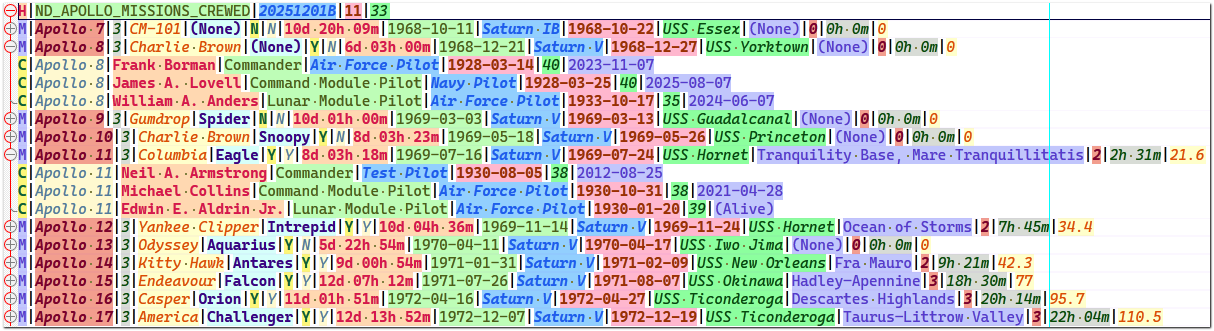
 Apollo Missions (Pipe) Sample File, with folding applied.
NestedDSV is a plugin for visualizing Nested (i.e., hierarchical) delimiter-separated values (DSV) data in Notepad++. For more information on NestedDSV data files, see: Nested DSV Primer
In addition, NestedDSV plugin offers these features: Display cursor position data; Jump to specific fields; Foldable Tree View; Data Extraction.
NestedDSV plugin has builtin dialogs to configure File-type, Record-type & Field metadata; Themes & Color definitions; and Folding structure.
NestedDSV's File Type Metadata Editor offers these immediately usable delimiters: Comma (,), Pipe (|), Tab (ASCII 9), Semicolon (;), Colon (:), Tilde (~), Caret (^), Unit Separator (ASCII 31), Double Pipe (||), Double Colon (::). In addition, NestedDSV offers support for custom delimiters that can be manually entered in the viewer configuration file. See: Delimiter Choices
-
Visualization of fields in NestedDSV data files with distinct colors and font styles. With or optionally without distinct background colors.
-
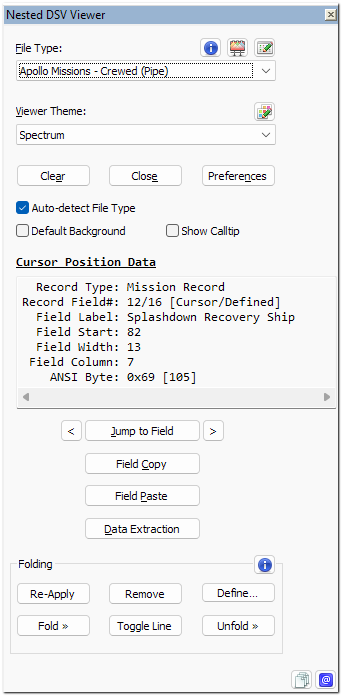
Display of record, field and byte information at cursor position on the panel. Also, optionally, inside a calltip within the Notepad++ editor pane.
-
Quick Field Navigation to Jump to any field of the current record or Hop to the left or right edge of the current field or adjacent fields.
-
Default Style Field Types for turning off visualization for specific fields like spaces or separators.
-
Menu Items with Keyboard Shortcuts for quick and easy access of frequently used actions.
-
Sample Data files in the plugin package demonstrating:
-
File Type Metadata Editor to intuitively define and customize file type metadata with record types and fields.
-
Visualizer Theme Editor to intuitively define and customize themes and colors for data visualization.
-
Fold Structures Editor to intuitively define and customize Fold Structure definitions.
-
Easy sharing of customized File Type or Visualizer Theme or Fold Structure definitions with Extract Configuration Data and Append Configuration Data.
-
Data Extraction to extract a handful data fields into an easily readable, quick report.
-
Full support for multi-byte characters in File Type metadata, Theme Labels, Data Extraction Prefix and Suffix Labels.
-
Click on the View Sample Files icon:
 , and choose from the menu options to view various sample files.
 -
Click on the File Type Metadata Editor icon:
 , to view, modify or create your custom File Type definitions. For more information, see: File Type Metadata Editor.
 -
Click on the Visualizer Theme Editor icon:
 , to view, modify or create your custom Visualizer Theme definitions. For more information, see: Visualizer Theme Editor.
 -
Click the Preferences button to specify preferences for the plugin. For more information, see: Preferences.
-
Check the Auto-detect File Type box to automatically visualize files with matching file type from the defined list. For more information, see: Auto-Detect File Type Configuration.
-
Check the Default Background box to render the NestedDSV fields with just the text colors while suppressing the background colors of the theme styles.
-
Check the Show Calltip box to display the Cursor Position Data in a calltip within the editor, right below the current cursor position. The calltip will be useful during presentations and other situations when there is a need to avoid an additional glance towards the side panel to view the same Cursor Position Data.
💡 To display the calltip text in bold, check the option for Use DirectWrite in Notepad++ Settings » Preferences » MISC.
-
For more information on the Jump to Field and left & right hop buttons, see: Quick Field Navigation.
-
For more information on Field Copy and Field Paste buttons, see: Field Copy and Field Paste.
-
For more information on the Data Extraction button, see: Data Extraction.
-
For more information on the buttons in the Folding section, see: Foldable Record Blocks and Fold Structures Editor.
-
Clicking the
…button at the right-bottom corner of the plugin panel will display the refreshed list of file paths for the INI files active for the current NestedDSV file. Just hovering over this button will display the last refreshed list.
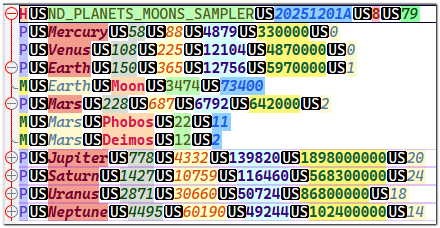
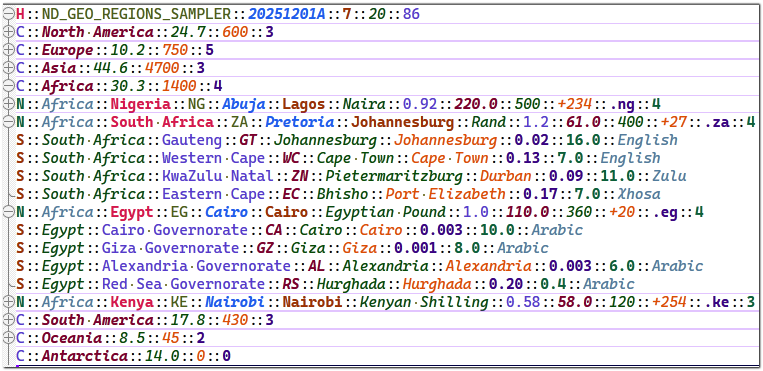
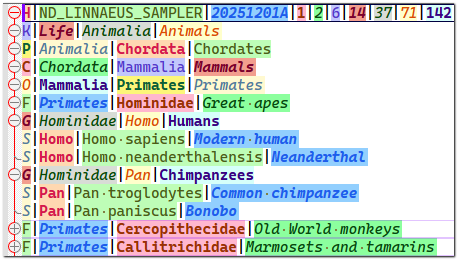
The sample data files can be accessed by clicking on the View Sample Files icon: , and then choosing an option in the menu.
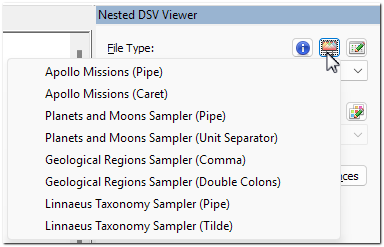
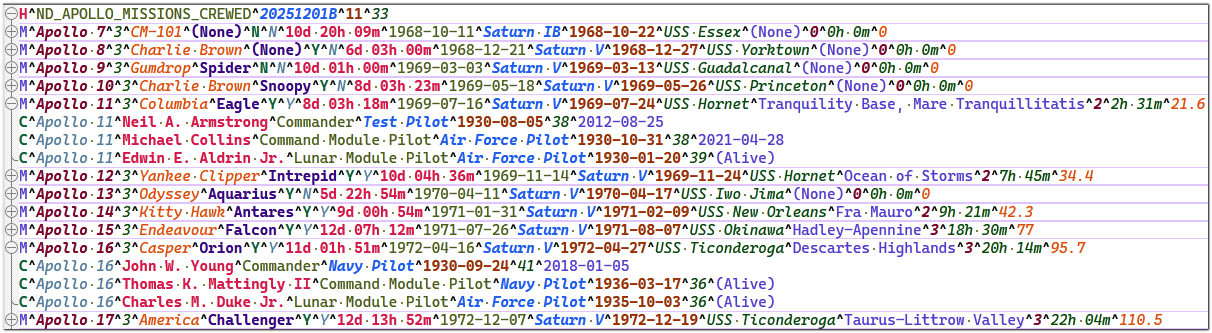
Here is a peek at some of the sample files:
- Install Notepad++ version 8.8 or higher.
- Open Notepad++.
- In Notepad++, go to menu Plugins » Plugins Admin....
- In the Available tab, check the box for NestedDSV Data Visualizer.
- Click the Install button.
-
Several of the icons used in this plugin are the originals or derivatives of the Fugue Icons designed by Yusuke Kamiyamane.
-
All screen clippings in this repository were made using FastStone Capture. Small-size application with awesome features!
While NestedDSV is meant for Nested DSV data files, FWDataViz is for fixed-width data files. The two plugins have similar interfaces with minimal changes. See: Nested DSV Primer
-
NestedDSV has a slightly simpler File Type Metadata Editor compared to the one in FWDataViz.
-
The sample files packaged with NestedDSV are also simpler and much more interesting.
Due to their similarities and minor differences, reviewing the documentation and sample files of both these plugins may benefit some users by reinforcing the underlying concepts.